



How to Generate Excel Reports
Join Our Early Access List & Unlock Benefits

The Export as Excel option in Gafix.ai is available only for Pro audit reports. This feature lets you download a detailed, shareable version of your Pro audit results for record-keeping, analysis, or presentations. Free audit reports do not include the option to export to Excel.
Export a Pro Audit Report
Follow the steps below:
1. Log in to your Gafix.ai account.
2. Go to Audit Reports from the sidebar.

3. Open the Pro audit report you want to export.
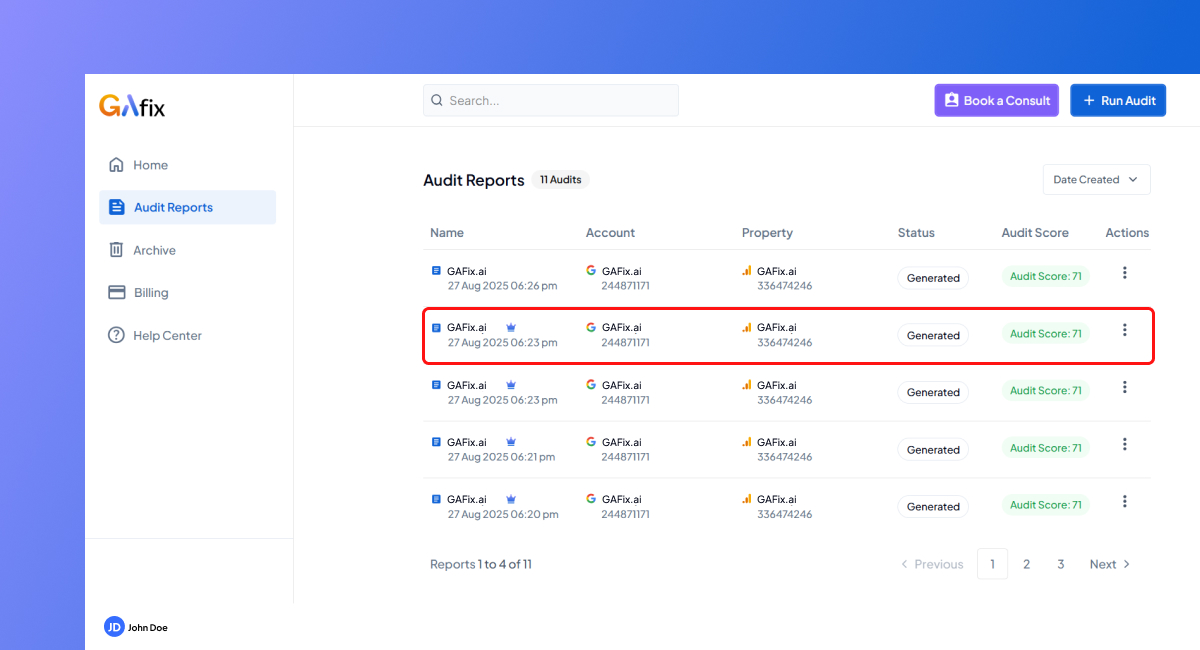
4. Review the report on screen and expand any sections you want included.
5. Click ‘Download Report’ at the top of the report.

6. When ready, the file will download automatically as an Excel report.
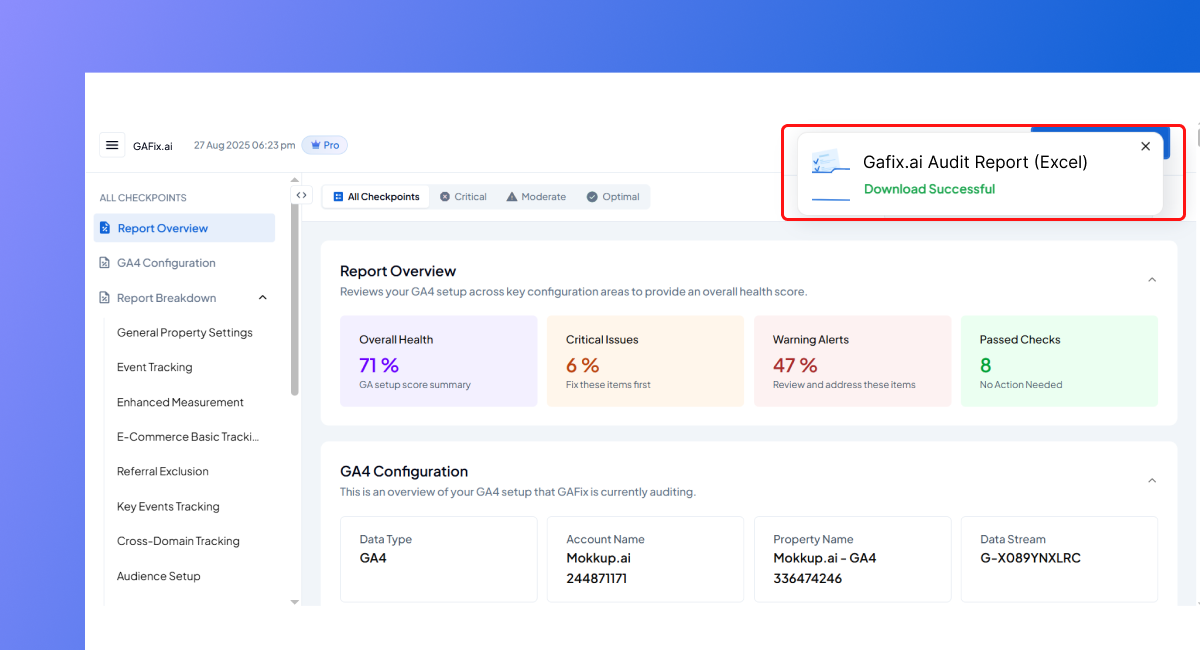
7. Save the Excel report to your device and rename it if needed.
8. Share the file with your team or attach it to emails and documents.
Report Content
The exported Excel includes all sections of your Pro audit report, such as:
- Summary of audit results
- Detailed findings and flagged issues
- Recommendations for fixes
- Key performance metrics
Since free audits only provide on-screen insights, Excel export is reserved for Pro audits.
Frequently Asked Questions
Can I export free audit reports as Excel reports?

No. The Export as Excel feature is only available for Pro audit reports. Free audits can only be viewed within the dashboard.
What information is included in the exported Excel report?
Your Pro audit Excel report includes a complete copy of the on-screen report summary, issues, recommendations, and metrics formatted for professional use
What if my Excel export fails?
Check your connection, refresh the page, and try again. If the issue persists, contact our Support team via the Help Center.
Confident Decisions Start with Accurate Tracking
Ensure your GA4 and GTM are correctly configured, reliable, and ready for scale.


