





Most Google Analytics 4 accounts we scan at GAfix.ai have at least 5–10 critical issues, something a proper GA4 audit checklist consistently uncovers.
Duplicate conversions, missing events, wrong time zone settings, broken ecommerce tracking, these problems silently drain marketing budgets and corrupt strategic decisions every single day.
Here are three warning signs your GA4 setup needs attention right now:
- Conversions dropped suddenly after a recent site deploy
- Paid campaigns show clicks but zero conversions in reports
- GA4 revenue doesn’t match Stripe or Shopify
This google analytics audit checklist comes from hundreds of automated audits we’ve run across SaaS, ecommerce, and B2B setups. Every point ties back to data trust, revenue protection, or marketing efficiency.

Open your GA4 tab alongside this checklist.
If you’re short on time, run a free automated GA4 audit at GAfix.ai to get a quick risk score. It covers the same ten areas in much more detail and gives you a prioritized score with fixes in minutes.

What Is a GA4 Audit and Why It Matters
A GA4 audit is a structured review of your Google Analytics 4 property to verify that data is being collected accurately, completely, and in alignment with your business goals.
Run one quarterly as a baseline health check, after every significant site deployment or GTM update, and before major campaigns where you need clean attribution data.
A typical audit covers implementation integrity, property configuration, traffic quality, event and conversion accuracy, custom dimensions, product integrations, consent compliance, and cross-domain or ecommerce tracking.
80% of GA4 Setups Are Broken. Fix Yours with GAfix today!
GA4 Audit Checklist: 10 Steps to Fix Broken Tracking
Work through each of the steps below in order—they are structured from foundational implementation checks through to advanced tracking validation.
For each step, open your GA4 Admin panel alongside this GA4 audit checklist and mark off items as you confirm them. If you find issues at any stage, fix them before moving on, since errors at the base level (implementation, property settings) compound and distort every metric further down the reporting stack.
1. Confirm How GA4 Is Implemented (And Stop Double-Firing)
The worst data issues we see at GAfix.ai start with “GA4 is firing twice” or “UA plus GA4 overlap.” This affects 70–80% of post-2023 migration audits (based on GAfix.ai’s automated scan database). Universal Analytics remnants still haunt many sites.
This GA4 audit checklist step is the most foundational — if implementation is broken, nothing downstream is trustworthy.
Document your current analytics implementation path:
- Hard-coded gtag.js on pages
- Google Tag Manager (GTM) container
- CMS integration like WordPress plugin
- Platform-native setup like Shopify GA4 app
Before proceeding, verify your GA4 installation is complete and correctly configured — especially if you’re starting from scratch or migrating from a legacy setup.
Verify only one active GA4 configuration fires per page. Open Chrome DevTools, go to Network tab, filter for “collect” endpoints. You should see one request per pageview. Multiple requests signal overlap. Use GTM Preview mode to confirm the firing sequence.

Check these items:
- GA4 Measurement ID matches across production, staging, and country domains
- Staging uses a separate GA4 property from live traffic
- GTM tags follow standardized naming (e.g., “GA4 – Event – purchase”)
- Legacy page-level scripts removed by end of Q2 2025
Takeaway: If GA4 is implemented twice or inconsistently, every report is compromised—this is the first thing GAfix.ai flags.
2. Audit GA4 Property & Data Stream Settings
Property-level misconfigurations silently distort metrics and attribution. For multi-region businesses, time zone misalignments skew daily reports by up to 12 hours, affecting 35% of global accounts (based on GAfix.ai’s automated scan database).
Run this GA4 audit checklist step immediately after confirming implementation — settings errors compound everything downstream.
Navigate to Admin and verify these property settings:
- Time zone and currency: Match your primary billing region. A Berlin-based SaaS should use UTC+1 and EUR.
- Google Signals: Check Admin → Data Settings → Data Collection. Enable for cross-device analysis and remarketing. Disable in strict consent environments.
- Data retention: Extend from the 2-month default to 14 months unless legal requirements force shorter periods. Year-on-year funnel analysis depends on this.
Review Enhanced Measurement toggles:
- Scroll tracking (90% depth)
- Outbound clicks
- Site search and query parameters
- File downloads
- Video engagement
Disable auto events that duplicate your custom implementations to avoid double-counting.
Confirm each website or app has a single correct data stream. No abandoned streams should receive traffic from older tags.
Takeaway: GAfix.ai reads property settings first—if the clock, region, or stream is wrong, every deeper analysis misleads you.
3. Clean Up Traffic: Filters, Bots, and Channel Attribution
“Traffic growth” means nothing if half of it is internal traffic, QA testers, or bots. Unfiltered audits commonly show 30–50% of apparent growth as junk (based on GAfix.ai’s automated scan database). This GA4 audit checklist step is where clean data begins.
Review Admin → Data Settings → Data Filters and confirm:
- Developer traffic excluded by excluding internal IP addresses using IP ranges
- VPN IPs used by remote teams filtered
- Hostname rules match actual corporate infrastructure
Check Hostname reports via Explorations to ensure only valid domains appear. Strange hostnames usually indicate spam or misconfigured tags.
- Paid social not hidden as “Referral” in default channel groupings
- UTMs for Meta Ads, LinkedIn Ads, and email follow strict naming conventions (covered in depth in Step 11)
- Large spikes in “Direct” or “Unassigned” around Black Friday 2025 investigated for broken tagging
Configure Referral Exclusions under Data Streams → More Tagging Settings. Add payment gateways (Stripe, PayPal, Klarna) and SSO providers that reset sessions.
Document every data filter and exclusion change for audit traceability.
Takeaway: Clean traffic baselines let GAfix.ai tell real growth apart from bot noise and mis-attribution.
4. Event & Conversion Hygiene (Stop Ghost Conversions)
GAfix.ai repeatedly finds ghost conversions: key events firing on page load, test purchases marked as real, or “signup” firing twice due to SPA routing issues. These bugs cause 25% revenue gaps between GA4 and CRM data (based on GAfix.ai’s automated scan database). This GA4 audit checklist section is where most revenue-impacting bugs hide.
Event Naming Conventions
Check for duplicate event name variations (“sign_up” vs “signup”) and establish a single naming pattern using lowercase and underscores.
Use DebugView and GTM Preview to trace a full user journey:

- Landing page → session_start
- Product view → view_item
- Cart → add_to_cart
- Checkout steps → begin_checkout
- Purchase → purchase
Each event should fire once in correct order.
Conversion Configuration Checks
Review Configure → Conversions to verify only genuine business goals are marked. Remove temporary test conversions after QA. Watch for form_submit auto-tracking counting non-lead forms.
Document which events are owned by marketing (GTM) versus engineering (dataLayer pushes) to avoid conflicts when new features ship.
Takeaway: Event hygiene is where GAfix.ai most often finds revenue-impacting bugs.
5. Parameters, Custom Dimensions, and Business Context
Default GA4 events rarely provide enough context for serious B2B SaaS, subscription, or multi-product stores. Custom definitions add the missing business insights.
List parameters sent with critical events:
- value, currency for revenue data
- subscription_plan for SaaS
- campaign_id, content_type for attribution
Verify parameters populate consistently in real traffic using DebugView, not just test sessions.
Parameter Validation Checklist
Check Configure → Custom definitions against GA4 limits (up to 50 event-scoped custom dimensions). Remove unused or obsolete entries.
Map each custom dimension to a business question:
- “Which pricing plan drives highest 90-day LTV?”
- “Which content category leads to demo requests?”
Common mistakes to fix:
- Forgetting to register a parameter as a custom dimension (invisible in reports)
- Changing parameter names during redesigns without updating GA4
- Reusing dimension slots with different meanings
Maintain a separate tracking plan document with last-updated dates.
Takeaway: GAfix.ai uses parameter consistency to score how “decision-ready” your analytics setup is.
6. Product Linking, BigQuery, Reporting Identity, and Audience Validation
Disconnected products create blind spots. Cross-device identity choices dramatically affect user counts and funnel accuracy.
Product Link Audit
Review all Product Links in Admin:
- Google Ads (conversion import working)
- Search Console (connected and active)
- BigQuery (daily export enabled)
- DV360 and other applicable integrations
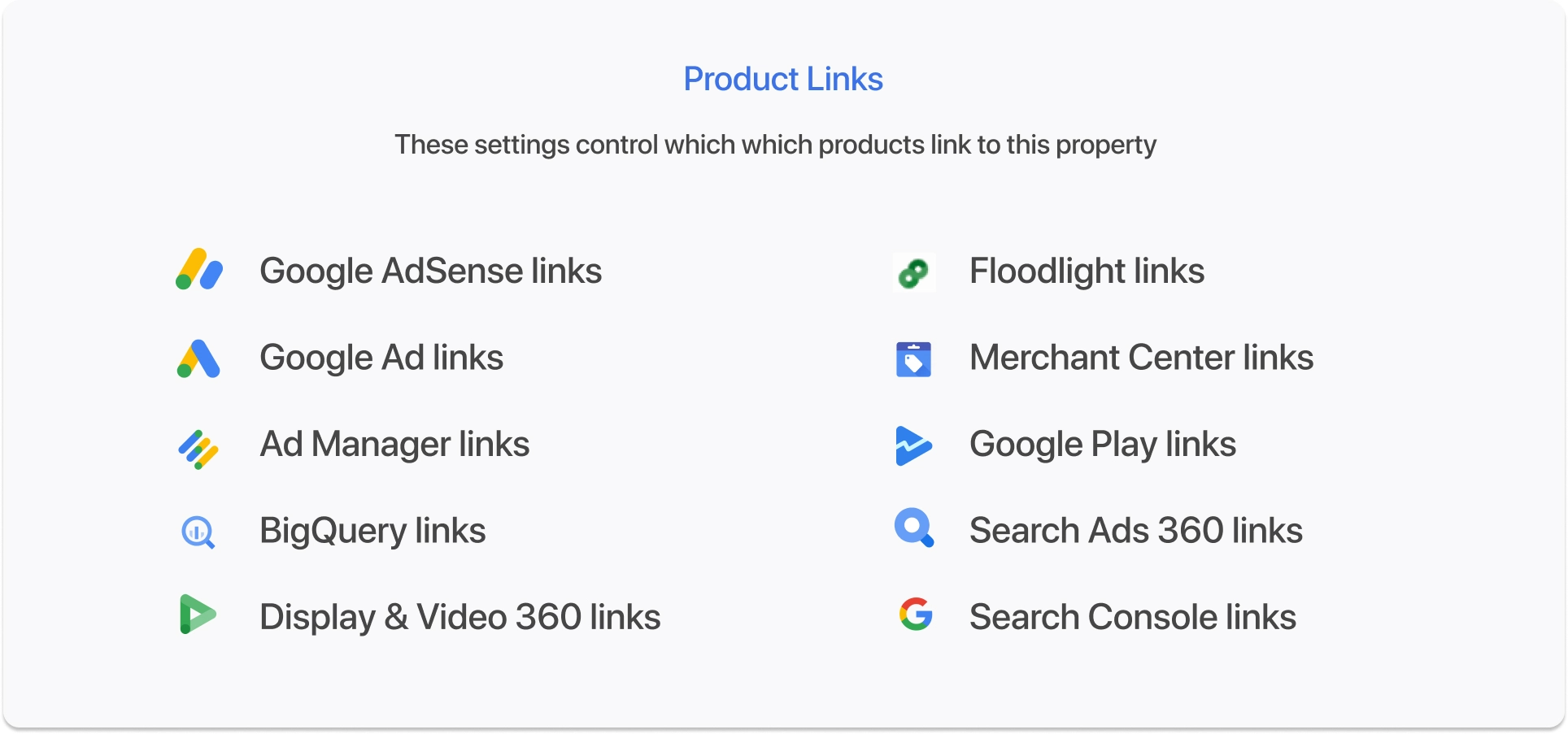
Ensure BigQuery export runs continuously from a specific start date. Confirm data location complies with regional rules for EU data residency.
Reporting Identity Configuration
For ecommerce, verify native Shopify or WooCommerce integrations don’t fight custom GTM-based tags. A common issue is Shopify’s native GA4 integration firing purchase events simultaneously with a GTM-based purchase tag — the result is doubled revenue in GA4. To check: filter DebugView by the purchase event and watch how many times it fires per completed transaction. One fire is correct. Two or more fires means duplicate tagging.
Audience & Remarketing Validation
Disconnected audiences silently cut off remarketing spend. Verify the following:
- GA4 audiences are syncing to Google Ads correctly — check Admin → Google Ads Linking → Audience settings
- Audience membership counts in Admin → Audiences are actively populating — zero or stale counts indicate a broken trigger or data stream issue
- No audiences use deprecated Universal Analytics conditions — these silently fail in GA4 without warning
- Confirm GA4 audience definitions use GA4-native event conditions (e.g., event_name equals “purchase”)
Takeaway: GAfix.ai audits often reveal broken product links that silently cut off conversion feedback to ad platforms.
7. Consent, Privacy, and Regional Compliance Checks
California (CPRA), Virginia (VCDPA), Colorado (CPA), and Connecticut (CTDPA) among others have enacted enforceable privacy laws — check your specific state obligations.
In the EU and UK, Consent Mode v2 requirements have been in force since March 2024. Consent and regional controls are now practical requirements, not optional additions.
Confirm your setup includes:
- A Consent Management Platform (CMP) like OneTrust or Cookiebot
- GA4 tags in GTM respecting consent states (ad_storage, analytics_storage) — see Google’s Consent Mode documentation for full implementation specs
- GTM’s Consent Overview configured correctly

Verify GA4 is not firing before consent in GDPR regions. Test manually from EU IPs using a VPN while watching DebugView.
Use country-level consent mode adjustments and IP anonymization. Differences between EU and US traffic affect reported user counts significantly.
For B2B SaaS with users across multiple regions, run this two-part check:
- In GA4 Explorations, segment new users by country for the last 90 days. If EU countries show a sudden drop in new users at a specific date, correlate it with a CMP deployment or consent banner change. This is a consent mode issue, not a traffic drop.
- Use the GTM Consent Overview report (Workspace → Consent Overview) to confirm all GA4 tags have a consent check assigned. Tags listed as “Consent Not Checked” are firing unconditionally regardless of user consent.
Consent changes create visible step-changes in metrics—especially new users and remarketing audiences. Annotate these internally.
GAfix.ai detects consent-related anomalies like sudden drops in events from EU regions, but CMP configuration still needs human review.
Takeaway: Consent compliance isn’t just about legal risk — incorrect consent mode configuration actively inflates or deflates your data, making every other audit step unreliable.
8. Validate Cross-Domain and Ecommerce Tracking End-to-End
Cross domain tracking and ecommerce tracking setups hide the most expensive errors—especially for SaaS with separate marketing sites and app subdomains.
Cross-Domain Setup
Confirm cross-domain settings in GTM and GA4:
- List all domains and subdomains (www.example.com, app.example.com, help.example.com)
- Verify user journeys preserve the same client ID across domains
- Check GTM decorators link domains properly
Test specific real-world flows:
- Marketing landing page
- Signup on app subdomain
- Payment provider redirect
- Return to thank-you page
Watch for new sessions or lost attribution at each step.
To test cross-domain tracking in practice: open a private browser window, land on your marketing site, click through to your app subdomain, and complete a test conversion. Then check GA4 DebugView to confirm the session_id remains consistent across all steps. If a new session starts when you cross to the app subdomain, cross-domain linking is broken — the user journey will appear as two unrelated sessions, your marketing site will show no conversion credit, and your funnel reports will show a false drop-off at the domain boundary.
The most common cause of broken cross-domain linking is GTM linker tag not configured for the receiving domain. Check your GA4 configuration tag in GTM → Domains to configure linker → and confirm all subdomains and external checkout domains are listed. Also confirm the GA4 tag on the receiving domain is set to accept incoming linker parameters.
Ecommerce Order Reconciliation
For ecommerce validation, reconcile a recent real order (last 7 days):
- Match transaction_id between GA4, Shopify/Magento, and payment gateway
- Verify revenue within ±15% tolerance (a commonly accepted reconciliation threshold for multi-system ecommerce setups)
- Check tax and shipping inclusion consistency
- Confirm purchase events don’t fire again on page refresh
Document at least one fully traced transaction from CRM back to GA4.
Takeaway: GAfix.ai surfaces missing or duplicated checkout steps, but nothing replaces walking one real transaction through the full pipeline.
9. Use GA4 Debugging Tools (and When to Bring in Automation)
GA4 offers excellent built-in QA tools that many teams ignore. Pairing them with automated audits catches issues faster.
Use DebugView to watch a full session from a test device. Verify event order, parameters, and user properties after any code deploy or tag change.
Build simple Explorations as debugging tools — if you need a primer, our guide on how to understand GA4 Explorations reports walks through the key report types without requiring a data team:
- Funnel exploration: session_start → view_item → add_to_cart → purchase
- Path exploration to spot unexpected drop-offs after specific dates
One growing data quality issue worth flagging: AI-referred traffic from tools like ChatGPT and Perplexity often appears as Direct or Other in GA4 by default. See our guide on how to track AI-referred sessions accurately to prevent this from distorting your source/medium data.
Compare the 30 days before and after a major product release. Compare last 30 days to previous 30 days to identify measurement changes separate from seasonality.
Manual QA should happen before every major campaign launch or product release. Schedule automated GAfix.ai scans as post-deploy sanity checks.
Takeaway: Manual GA4 tools help you understand what’s wrong; GAfix.ai gives you a prioritized list of where to look first.
10. Turn the Audit into an Action Plan
A checklist only creates value if it leads to a prioritized fix list with owners and dates—not a forgotten document.
Assign responsibility clearly:
- Marketing ops: GTM container and campaign parameters
- Engineering: dataLayer and app events
- Legal: consent and data retention
- Analytics: reporting identity and channel definitions
Create a tracking document mapping each issue to an owner, target fix date, and verification step.
Re-run an automated GAfix.ai audit after implementing fixes to confirm known issues are resolved and detect any new regressions.
Takeaway: An audit without an action plan is just a list of problems — ownership, deadlines, and re-verification are what turn findings into fixed data.
Also Audit Campaign Tagging & UTM Governance
UTM parameter inconsistency is one of the most common and costly silent errors in GA4. Even a single campaign with a missing or misspelled UTM can misattribute thousands of sessions to Direct or Unassigned, corrupting channel performance data across your entire reporting period. This google analytics 4 audit checklist step is where attribution accuracy is won or lost.
Auditing UTM Consistency in GA4
Use GA4 Explorations to audit your UTM coverage:
- Open Explorations → Blank Exploration
- Add dimensions: Session source, Session medium, Session campaign
- Set the date range to cover your last three months of campaign activity
- Filter for sessions where source/medium is “(not set)” or “direct/(none)”
- Cross-reference date ranges against known campaign activity in your ad platforms
Any sessions from paid campaign periods showing as Direct indicate broken or missing UTM parameters. This is a high-priority fix before any budget review.
For a deeper audit, add the Session default channel grouping dimension alongside source/medium. If you see channels like “Unassigned” accounting for more than 5% of sessions, your UTM naming convention is not mapping correctly to GA4’s default channel grouping rules.
Common mismatches include utm_medium values like “social-paid” (should be “cpc” for paid), “EDM” (should be “email”), or “affiliate” (should match GA4’s “affiliates” grouping).
Pull the same Exploration filtered to your top 10 campaign names.
Confirm each campaign name follows your naming convention and matches what’s in your ad platform. Discrepancies usually point to UTMs added manually rather than via a shared UTM builder.
Common UTM Errors to Fix
1. Missing utm_medium (Email): Email traffic gets incorrectly attributed to Direct, hiding true performance.
2. Inconsistent utm_source casing: Variations like “Facebook” vs “facebook” split data into multiple sources.
3. UTMs on internal links: Breaks session continuity and resets original traffic source.
4. Auto-tagging + manual UTMs (Google Ads): Conflicts can override or duplicate tracking data (e.g., GCLID issues).
Recommended UTM Naming Convention
utm_source: Use consistent platform names (e.g., google, meta, linkedin, email).
utm_medium: Define clear channel types (e.g., cpc, social, email, organic).
utm_campaign: Follow structured naming (e.g., q1-2026-trial-promo).
utm_content: Differentiate creatives or variants (e.g., headline-a, cta-blue-button).
Document this in a shared UTM builder and enforce it via campaign launch checklists. Use a locked Google Sheet as the single source of truth for campaign naming.
Account Access & User Permissions Audit
While reviewing your property configuration, audit user access as part of this GA4 audit checklist step:
- Navigate to Admin → Account Access Management
- Review all users with Admin or Editor roles — remove anyone who no longer needs elevated access
- Check Analyst-level users are limited to what their role requires
- Remove inactive users (last login > 90 days)
- Review Data Sharing Settings under Admin → Account Settings to confirm what data Google can use for benchmarking and modeling
Restrict Admin access to two or three key stakeholders maximum. Overly permissive access is both a data governance risk and a GDPR liability.
Also review these three often-missed settings under Admin → Account Settings:
- Modeling contributions and business insights: Controls whether Google uses your data to improve its models. Disable if your DPA prohibits this.
- Technical support access: Should only be enabled when actively working with Google support on a specific issue — turn it off otherwise.
- Account specialists: Disable unless you want Google sales representatives to access your property data for recommendations.
Takeaway: UTM governance and access hygiene are the two most overlooked items in a google analytics 4 audit checklist — fixing both takes less than two hours and immediately improves attribution accuracy and data security.
Claim Your Free GA4 Audit
Ready to identify your tracking gaps? Run a free GA4 audit at GAfix.ai to get an instant checklist of misconfigurations, prioritized by revenue risk. Then use this article as your implementation guide.
Whether you are running a google analytics 4 audit checklist for the first time or using this google analytics audit checklist as part of a quarterly review, the process is the same: work through each step, fix what’s broken, and verify the fix. Bad data costs money every day you wait—accurate analytics setup takes just minutes to start fixing.
Frequently Asked Questions
How often should I run a GA4 audit?

Run a full GA4 audit at minimum once per quarter. Additionally, run a targeted audit after every major site deployment, GTM container update, or product release. High-traffic periods such as Black Friday or year-end campaign pushes also warrant a pre-launch audit. Automated tools like GAfix.ai make it practical to run a baseline scan after every significant change rather than waiting for a quarterly cycle.
What are the most common GA4 configuration mistakes?
The five mistakes GAfix.ai surfaces most consistently across audits are: dual GA4 tag firing from overlapping gtag.js and GTM implementations; data retention left at the 2-month default, cutting off year-on-year analysis; ghost conversions caused by key events firing on page load rather than genuine user actions; missing referral exclusions for payment gateways breaking session attribution; and custom dimensions registered in GA4 but never populated with consistent parameter values in the dataLayer.
Is this GA4 audit checklist relevant for SaaS and ecommerce equally?
Yes, though the priority order differs. For SaaS, the highest-impact steps are implementation (Step 1), conversion hygiene (Step 4), custom dimensions for subscription context (Step 5), and product linking for Google Ads conversion import (Step 6). For ecommerce, cross-domain tracking (Step 8) and UTM governance (Step 11) typically surface the most revenue-impacting errors. Both types of businesses benefit equally from the consent compliance step (Step 7) and the action plan step (Step 10).
Confident Decisions Start with Accurate Tracking
Ensure your GA4 and GTM are correctly configured, reliable, and ready for scale.



Subscribe To Our Newsletter


