







If you migrated from Universal Analytics to Google Analytics 4 and expected your old Goals to work the same way, you’re not alone. It’s one of the most common issues we see at GAfix when auditing GA4 implementations for B2B and SaaS teams. In GA4, Goals no longer exist. Conversions are simply events that you mark as conversions, and they’re counted differently from the session-based goals used in Universal Analytics.
The terminology hasn’t helped either. GA4 originally used “Conversions,” briefly introduced “Key events” in 2023, and then reverted back to “Conversions” in 2024 to align reporting with Google Ads. These changes have created confusion, leading many teams to misconfigure tracking and inflate their conversion numbers.
In GA4 audits, we frequently see duplicate lead tracking, conversion counts that don’t match CRM records, and attribution issues that distort marketing performance. This article explains how events and goals differ, what changed in GA4, and how to audit your setup to prevent double counting and inaccurate reporting.

Goals in Universal Analytics: What They Were and Where They Went in GA4
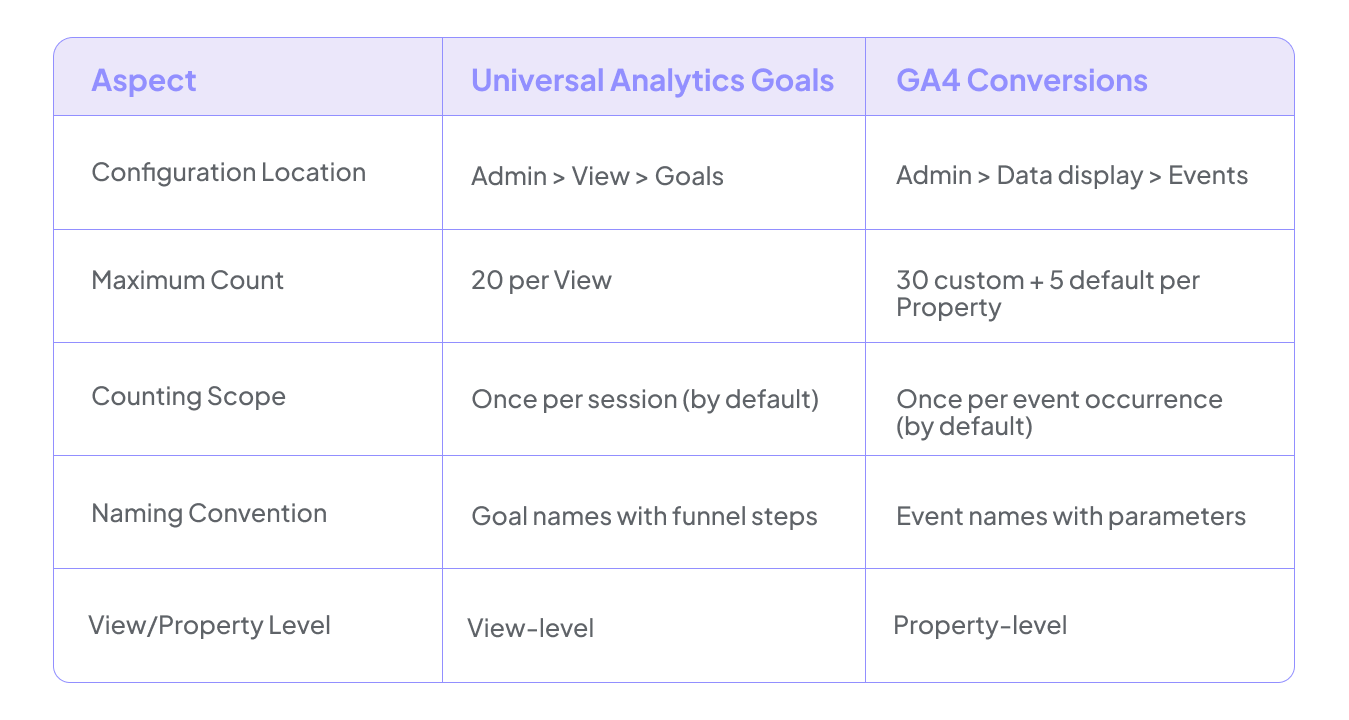
In Universal Analytics, Goals were session-scoped completion metrics tied to specific rules. You configured them under Admin > View > Goals, and each View could have up to 20 Goals. These goals measure objectives like “Lead form completed,” “Demo request,” “Checkout complete,” or “Newsletter signup.”
The key characteristic of UA Goals was their counting logic: each goal completion was counted once per session by design. Even if a site visitor triggered the underlying action multiple times in that session—submitting a form twice or reloading a thank-you page—UA recorded just one goal completion. This prevented inflation from repeated user actions within the same session.
UA Goals came in four types with precise mechanics:
- Destination Goals: Triggered on specific URL patterns like “/thank-you/“ or “/order-confirmation/“
- Duration Goals: Fired after a session time threshold (e.g., 5:00 minutes)
- Pages/Screens per Session Goals: Activated after viewing a set number of pages (e.g., 3+ pages)
- Event Goals: Matched Category/Action/Label combinations for specific events like video plays or button clicks
Teams often assigned monetary value to goals for ROI calculation, with reports under the Conversions tab aggregating completions, value, and abandonment rates.
GA4 eliminated the Goals feature entirely. There is no “Goals” menu anywhere in the interface. Instead, GA4 has a flat list of events at the Property level, and you designate certain events as conversions through Admin > Data display > Events.
The limits and scope changed significantly. GA4 allows up to 30 custom conversion events per property (plus 5 pre-configured defaults like “purchase”), compared to UA’s 20 Goals per View. Since Views no longer exist in GA4, organizations must rethink their conversion taxonomy at the property level.
UA Goals vs GA4 Conversions Comparison
Events in GA4: The Foundation of the New Data Model
Universal Analytics had multiple hit types: pageviews, events, ecommerce transactions, and social interactions. GA4 took a fundamentally different approach. The platform is fully event-based, meaning every user interaction is recorded as an event with parameters.
In GA4, there are no separate “Goals vs Events” objects to configure. There are just events. Some of those events you choose to mark as conversions. This is a critical distinction that trips up teams accustomed to the UA model.
The GA4 event structure consists of an event_name plus parameters. For example, an event might have event_name = “form_submit” with parameters like form_id=”lead-gen-2025”, page_location, and value. This structure enables richer segmentation and analysis without requiring separate reports for different interaction types.
The Four GA4 Event Categories
1. Automatically Collected Events These 33 events fire without any configuration. Examples include “first_visit,” “session_start,” and “user_engagement.” Important note: automatically collected events cannot be marked as conversions to avoid noise in your conversion data.
2. Enhanced Measurement Events These events are enabled via toggle in your property settings. They include “page_view,” “scroll” (at 90% depth), “file_download,” “outbound_click,” and “video_start.” When a user scrolls, clicks external links, or interacts with site elements, these events fire automatically. You can filter these for conversion tracking.
3. Recommended Events Google provides standardized event names for common user actions that integrate well with advertising platforms. Examples include “purchase,” “add_to_cart,” “generate_lead,” “login,” and “sign_up.” These come with specific parameter requirements (like transaction_id for deduplication) that ensure consistency when users interact with your conversion tracking.
4. Custom Events These are business-specific events you define, such as “pricing_form_submit” or “book_demo_click” tailored to a SaaS or B2B workflow. You implement these via Google Tag Manager GA4 Event tags or GA4’s Create Event UI.
How UA Goals Map to GA4 Conversions (And Where They Don’t)
Teams migrating from UA often search for “the GA4 equivalent” of their existing goals. The truth is that only some UA goal types map cleanly into GA4. Others require workarounds or should be replaced entirely with engagement metrics.
Destination Goals
In UA, Destination Goals triggered when a user landed on a specific page like “/thank-you/“ or “/order-confirmation/“. You could use regex patterns for flexibility with query parameters.
The GA4 approach involves filtering “page_view” (or “screen_view” for app screens) by page_location or page_path, creating a new custom event when that rule matches, and then marking that event as a conversion. For example, you might create a “lead_thank_you_view” event derived from “page_view” where page_path equals “/thank-you/“.
However, destination-based tracking has reliability concerns that we’ll address in a later section. At NeenOpal, we often recommend event-based alternatives over destination tracking for primary conversions.
Event Goals
UA Event Goals relied on matching Category, Action, and Label combinations. This is the cleanest mapping to GA4.
In GA4, you implement the desired action (e.g., “form_submit” with parameters like form_type=”enterprise-demo”) via Google Tag Manager and mark that event as a conversion. Parameter-based conditions can be handled through GA4’s custom event creation or Tag Manager configuration.
Duration Goals
UA Duration Goals converted a session into a goal completion after a set time on site (e.g., 5 minutes for specific site page duration thresholds).
GA4 does not support session duration goals directly. Instead, engagement is measured via “engaged_sessions,” “average_engagement_time,” and “engagement_rate” (engaged sessions divided by total sessions). If you relied on duration goals to measure user behavior and engagement, you’ll need to shift your thinking to these GA4 engagement metrics.
Pages per Session Goals
UA allowed setting a pages-per-session threshold (e.g., 3+ pages) as an event goal proxy for engagement.
GA4 has no direct equivalent. Teams that relied on this as a micro conversion should use engagement metrics, funnel exploration reports, or build custom events that fire after certain milestones if absolutely needed. However, GA4’s emphasis on event-driven measurement means this approach is generally discouraged.
Why GA4 Conversions Inflate So Easily: Double Tracking and Counting Methods
GA4 conversions are event-based and can fire multiple times per session. This is a fundamental shift from UA’s once-per-session goal counting, and it’s where conversion rates start to look suspicious for teams that haven’t adjusted their configuration.
Consider this concrete example from a B2B site:
A visitor completes a lead form. The site tracks a “form_submit” event when the form is submitted and also fires a “thank_you_view” event when the confirmation page loads. If both events are marked as conversions in GA4, the platform counts two conversions for a single lead. The result: conversion counts inflated by 100%.
This duplication problem existed in UA but is amplified in GA4 because:
- Conversions are counted once per event occurrence by default
- Users can reload pages, encounter validation errors, or re-trigger actions multiple times in a single session
Here’s a real-world scenario we encounter regularly: A SaaS company has a free trial signup form with client-side validation. A user encounters validation errors and submits the form three times before successfully completing it. In GA4 with default settings, this registers as 3 conversions. In reality, it’s 1 lead. Your conversion data becomes unreliable, and your ROAS calculations in Google Ads break down.
The Conversion Counting Method Setting
GA4 provides a toggle for each conversion event: “Once per event” versus “Once per session per user.” You’ll find this under Admin > Events, where you select the event and configure counting.
Once per event is appropriate for:
- Ecommerce “purchase” events where every transaction matters
- “add_to_cart” events for measuring shopping behavior
- File downloads where repeat downloads have value
- Multiple micro conversions that each represent distinct user actions
Once per session is appropriate for:
- Lead forms where multiple submissions represent one business outcome
- Demo requests
- Trial signups
- Any conversion where repeats in the same session are duplicates, not additional value
Without proper configuration, we routinely see 2-5x inflation in non-ecommerce conversion tracking. For B2B companies, properly defined goals makes the difference between accurate pipeline forecasting and complete fiction.
Destination-Based Tracking vs Event Tracking: When URLs Create False Conversions
Many UA setups relied on destination goals (e.g., “/thank-you/“) and teams tried to replicate this pattern in GA4. This approach introduces significant risks that can corrupt your conversion data.
Common Pitfalls with Destination Tracking
The thank-you page is indexable If your confirmation page appears in Google search results, users can land on it directly without completing any form. Every organic visit becomes a false conversion.
The URL is shareable or bookmarked Users share confirmation pages, bookmark them for reference, or access them from email links. Each visit registers as a conversion regardless of whether the desired action occurred.
Bots and crawlers trigger the page Without proper bot filtering, crawlers hitting the thank-you URL inflate your numbers with phantom conversions from non-human website traffic.
Query parameters allow direct access If your confirmation page accepts parameters like “/thank-you?id=123” without server-side validation, test scripts, bots, and ajax based site applications can generate conversion events at will.
How to Validate Your Thank-You Page
Before relying on destination-based conversion tracking, run these checks:
- Search Google: Enter “site:yourdomain.com/thank-you” to see if the page is indexed
- Check Google Search Console: Review the indexing reports for unexpected pages
- Inspect meta tags: Verify the page has “noindex,nofollow” directives
- Test direct access: Can you load the page by typing the URL in your browser without completing the form?
- Review robots.txt: Ensure the page is blocked from crawlers
When Destination Tracking Is Acceptable
Destination tracking can still work for:
- Gated confirmation pages accessible only via server-side redirects after legitimate transactions
- Dynamic, session-specific URLs that cannot be guessed or indexed
- Pages with proper “noindex,nofollow” tags and bot protections in place
For most lead generation, SaaS signup, and multi-step checkout flows, we recommend event-based tracking (e.g., “generate_lead,” “trial_start,” “checkout_complete”) as the primary conversion source. Event tracking fires server-side or on confirmed user clicks, making it bot-resistant and parameter-rich for segmentation.
Step-by-Step: How to Mark an Event as a Conversion in GA4
In GA4, conversion setup is a two-part process: first, ensure the event fires correctly; then, mark it as a conversion in the Admin UI. Here’s how to track conversions properly.
Marking an Existing Event as a Conversion
Step 1: Log into your Google Analytics account and select the correct property.
Step 2: Navigate to Admin > Data display > Events (the exact label may vary slightly based on UI updates).
Step 3: Locate the event by name (e.g., “form_submit” or “generate_lead”) in the events list. Note: You may need to wait up to 24 hours after the event first fires to see it appear here. Use GA4 DebugView to verify the event is firing before expecting to see it in the list.
Step 4: Toggle “Mark as conversion” for that event. From this point forward, each occurrence will be counted as a conversion. This is not retroactive—only future occurrences count.
Creating a New Conversion Event from an Existing Event
When you need to filter an existing event to create a specific conversion (like tracking only thank-you page views):
- Go to Admin > Data display > Events
- Click “Create event”
- Define your conditions (e.g., event_name = “page_view” AND page_path contains “/thank-you/“)
- Name the new event (e.g., “lead_thank_you_view”)
- After the event fires, mark it as a conversion
Alternatively, navigate to Admin > Conversions > New conversion event and enter an event name that matches your desired event or custom derivative.
Setting the Conversion Counting Method
For each conversion event, you can specify whether it should count once per event or once per session:
- Go to Admin > Conversions
- Select the conversion event
- Choose your counting method
Typical settings by use case:
- “Once per session” for B2B lead forms, demo requests, trial signups
- “Once per event” for purchases, downloads, add-to-cart events
Simple GA4 Audit Framework: Are Your Events and Conversions Trustworthy?
GA4 does not proactively alert you when key events or conversions stop firing. Misconfigured tags from a site update, broken third party tools integrations, or silent failures can go unnoticed for weeks, corrupting your critical data for future campaigns.
Here’s a concise, repeatable audit checklist to run monthly or after major site releases:
Monthly Conversion Audit Checklist
1. Review Recent Conversion Activity
- Navigate to Admin > Conversions and the standard Conversions reports
- Verify all expected key actions (purchases, leads, signups) fired in the last 30 days
- Flag any conversions showing zero or unexpectedly low counts
2. Compare Against Backend Records
- Pull event counts for critical conversions like “purchase” and “generate_lead”
- Compare against CRM, marketing automation, or backend transaction records
- Discrepancies greater than 10% warrant investigation
3. Check for Double Tracking
- List all conversion events currently enabled
- Verify you don’t have multiple conversion events attached to the same user action
- Common culprits: tracking both “form_submit” and “lead_thank_you_view” for one form
4. Validate Counting Methods
- Review each conversion’s counting method (once per session vs once per event)
- Adjust where counts appear inflated or misleading relative to business reality
- Document any changes and the reasoning
5. Verify Parameter Population
- For ecommerce “purchase” events, confirm “value,” “currency,” and “transaction_id” are consistently populated
- Missing parameters break Google Ads conversion value reporting and data-driven attribution
- Check for website revenue alignment with reported event value data
Monitoring Tools and Practices
- Use GA4 DebugView and Google Tag Manager Preview mode when deploying new tags
- For larger teams, add basic alerting via Looker Studio dashboards or BigQuery exports to highlight sudden drops (>20%) in key events
- Establish milestones for regular audits tied to site release cycles
At GAfix, our GA4 audit processes focus specifically on identifying missing events, duplicate conversions, and inconsistent parameter schemas across properties. We’ve built these checks into GAfix.ai to help teams catch issues before they corrupt weeks of conversion data. Properly defined goals makes all the difference in tracking whether your online marketing efforts are actually working.
Frequently Asked Questions
What’s the difference between events and goals in Universal Analytics?

In Universal Analytics, Events were one hit type using Category/Action/Label to track user actions like video plays, button clicks, or outbound link clicks. Events could be recorded multiple times per session. Goals were separate configuration rules—based on URLs, durations, pages per session, or events—that counted once per session as completion metrics. Events fed into Goals but served different purposes: events tracked specific events while goals measure objectives for visitor completing key actions.
Do Goals still exist in GA4?
No. GA4 removed Goals entirely. There is no Goals menu or Goals configuration anywhere in the interface. Instead, GA4 uses events and allows you to designate certain events as “conversions.” This fundamental shift means you must understand the event-based model to effectively track progress toward your business objectives.
How can I tell if my GA4 conversion tracking is configured correctly after migrating from UA?
To confirm your conversion tracking in Google Analytics 4 is set up correctly after migrating from Universal Analytics, ensure each key UA goal maps to a GA4 event or conversion, counts roughly match your CRM or backend data (within ~10%), and no duplicate events track the same action. Also verify the correct counting method is used—once per session for leads and once per event for purchases—and review your conversions regularly to keep reporting accurate.
Confident Decisions Start with Accurate Tracking
Ensure your GA4 and GTM are correctly configured, reliable, and ready for scale.




Subscribe To Our Newsletter


