







Most GA4 properties are quietly broken. The owners may not accept it, but the data says it all. As per some sources, nearly 80% of GA4 implementations have broken or missing event configurations. A conversion fires twice. A self-referral inflates revenue. Attribution sits on the default model nobody actually picked. The dashboard still loads, the numbers still show up, and everyone moves on.
The latest Google Analytics update is trying to fix some of this. It's called Task Assistant, and it's a new built-in checklist that lives inside your GA4 property. It looks at what you've already set up, then tells you what's missing.
Useful? Yes. Enough? Not quite. Here's what the new Google Analytics announcement actually does, where it helps, and the gaps it still leaves wide open.
What is Task Assistant in Google Analytics?
It's a guided setup layer inside GA4, rolled out as part of one of Google's newer Analytics updates. In practice, it walks you through the parts of GA4 most teams quietly skip, linking accounts, configuring key events, enabling the reporting settings that actually matter, and working through the data issues Diagnostics has already been surfacing in the background.
You'll find it in the left-hand navigation of your GA4 property, under the Admin area. The interface is simple. A running list of tasks, grouped by theme, with a progress count at the top showing how much is left to clear. It didn't appear out of nowhere either.
Over the past twelve months, Google has been quietly building a "self-service health" layer around GA4. Diagnostics arrived first. Then Analytics Advisor, the Gemini-powered AI assistant. Task Assistant fits the same pattern: Google trying to make GA4 less of a black box for people who aren't full-time analysts.

How Does The Google Analytics Task Assistant Work?
The Google Analytics Task Assistant is essentially a built-in setup checklist inside GA4, the kind of thing most teams end up building themselves in a spreadsheet. It pulls the setup steps that matter into one view so you're not digging through five different menus to find them. Click into any task and you get three options.
The "Take action" option opens the exact page in GA4 where that setting lives. So if the task is to switch on Google Signals or link your Google Ads account, you don't have to dig through menus looking for it. The Task Assistant takes you straight there.
The "Watch video" option plays a short clip from Google's official tutorial. The video is time-stamped, so it skips straight to the part that explains the task you're working on.
The "Skip the task" option simply hides the task so it stops cluttering your view. Useful for anything you know you won't be using.

You can collapse anything that doesn't apply to your business, and move on under this Google Analytics update. For example, a B2B SaaS company can ignore the e-commerce-leaning items, and a blogger running zero paid ads can skip the Google Ads linking step.
The 6 Task Categories Inside Task Assistant
Tasks inside GA4 Task Assistant are grouped into six categories, each tied to a different part of getting GA4 production-ready.
1. Get Started
The basics of data collection starts here. Turning on Google Signals, configuring key events, and making sure your property is collecting the events it needs to be collecting. If you're brand new to GA4, you'll spend most of your time here first.
2. Connect Your Accounts
Everything outside GA4 that needs to be wired in. For example, connecting Google Ads to GA4 for conversion import, Search Console for organic search performance, BigQuery for raw event export, and more fall under this task group. None of these are GA4 features on their own, but missing them costs you reporting depth.
3. Enhance Your Reporting
These are the settings that turn standard reports from "fine" into actually useful. Two tasks sit inside this one. The first is creating custom insights, which are automated alerts that ping you when something noteworthy shifts in your data, like a sudden traffic spike or a metric falling outside its usual range. The second is creating audiences, which are groups of users who share the same visitor behaviours or traits. Once those audiences exist, you can use them to target ads or shape what different visitors see on your site.
4. Optimize Your Advertising
If you're running Google Ads, this is the category that gets your two platforms talking to each other properly. Three tasks live here.
- Creating a conversion action lets the user actions you already track in GA4 (purchases, sign-ups, form submissions) count as conversions inside Google Ads, so your campaigns can actually optimise toward what matters to your business.
- Then there's targeting ads to Analytics audiences, where you take the audience groups you built earlier and point your Google Ads campaigns at them. You're now reaching people based on what they've actually done on your site, not who they are on paper.
- And linking to Google Ads is what makes the other two possible in the first place. It's the connection between your Analytics property and your Ads account, and without it, neither of the others has anywhere to send data.
The handy thing about this new Google Analytics announcements that all three sit in one place inside Task Assistant, so you're not hunting them down separately.
5. Add First-Party Data
This is the category that fills in the parts of the customer picture GA4 can't see on its own.
- Setting up User-ID lets you stitch a single user's activity together across different sessions and devices, so one person doesn't get counted as three.
- Set up and use the measurement protocol to send events to GA directly from your server. Useful for things that don't happen in a browser, like a confirmed payment or an offline order.
- Setting up user-provided data lets you pass consented first-party signals (like hashed email addresses) to GA so audience reporting and conversion matching get sharper.
- Import campaign data brings in cost data from non-Google channels (email, social, paid platforms outside Google Ads), so you can work out actual return on spend across the whole mix.
- Import item data pulls your full product catalogue into GA so you can analyse performance by attributes like size, colour, or category.
- Importing offline event data lets you upload events that happened outside your website, like in-store sales or phone orders, so they show up in your reports alongside online activity.
Together, these tasks turn GA4 from a website analytics tool into something closer to a full customer view, especially for businesses with offline sales or non-Google ad spend.
6. Fix Data Issues
This is the bridge between Task Assistant and Diagnostics. If GA4's diagnostics layer is picking up data collection problems (duplicate transactions, broken tags, suspicious traffic), they get surfaced here as fixable tasks.
How to Access the New Google Analytics Task Assistant?
Getting to Task Assistant takes about three easy steps.
1. Open your GA4 property and head to the left-hand navigation panel.
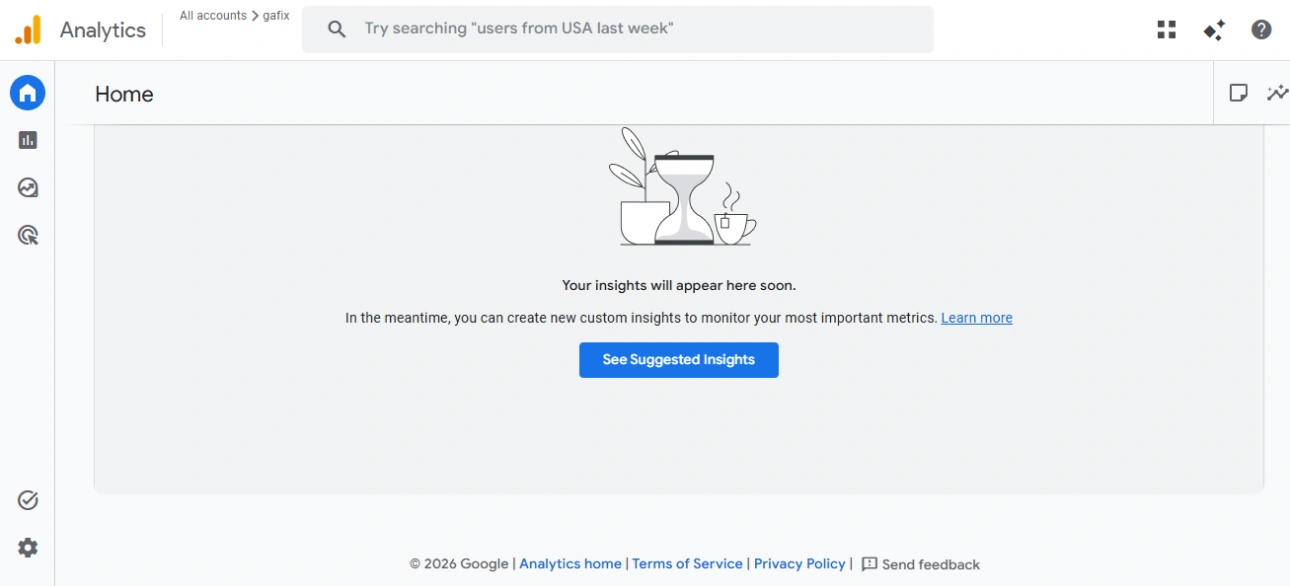
2. At the bottom of the left menu, click Tasks to get started.
.webp)
3. Open it. You'll land on the tasks page with the full grouped list and a count of what's still left.
Task Assistant is rolling out gradually, so not every property has it yet. Google has said they're actively expanding access, but if it isn't there yet, you'll have to wait. You also need Administrator, Editor, or Marketer role in GA4 to use Task Assistant.
Why This Google Analytics New Update Matters?
GA4 has a complexity problem. The platform is powerful, but the learning curve has pushed a lot of marketers into a "set it up once and never look at it" pattern. Task Assistant nibbles at that problem. For the average marketer or small business owner, it bridges the gap between what GA4 can do and what their property is actually doing.
What GA4 Task Assistant Won't Tell You?
Here's where the new Google Analytics update stops being enough on its own.

It only flags what Google's rule engine surfaces
Task Assistant runs on a fixed set of checks that Google built. Anything outside that ruleset, no matter how broken, won't show up. The gaps you most need to find are often the ones Google hasn't decided to look for.
It's a to-do list, not an audit
Task Assistant tells you what's missing. It doesn't grade how well something is implemented. Your conversions are firing, sure, but are they deduped? Are they tagged with the right currency? Are they being inflated by self-referrals you forgot to exclude? A green checkmark in Task Assistant won't catch any of that.
It doesn't benchmark against best practices
A completed task means "Google detected it exists." It does not mean it's set up the way a senior analyst would set it up. There's a difference between "attribution is on" and "attribution is correctly modelled for your funnel."
Attribution depth is missing
Task Assistant nudges you to enable attribution settings. It doesn't audit whether your chosen model actually fits how your customers convert, or whether cross-channel paths look broken.
Consent Mode v2 is barely covered
Task Assistant can flag obvious consent signal gaps. It won't validate that consent states are being passed correctly through your tag manager, that modeled conversions are flowing the way they should, or that your CMP is wired right end-to-end.
The video guidance is generic, not problem-specific
Yes, Google Analytics Task Assistant deep-links you to time-stamped clips from Google's official walkthrough videos, which is genuinely helpful. But those videos explain the feature, not your specific misconfiguration. There's no "here's exactly why your property is doing X" context, and no fix tailored to what your account is actually doing wrong.
It's locked inside one property at a time
It gives no cross-property view and no exportable report. Nothing you can hand to a client or stakeholder. If you're an agency or a consultant, the output stays trapped inside GA4.
It's reactive, not proactive
Task Assistant surfaces what Google's engine currently flags. It doesn't continuously re-scan against an evolving set of community best practices the way an external audit tool does.
That's where a comprehensive GA4 audit tool like GAfix comes into play. GAfix scans your full GA4 setup in under five minutes and returns a detailed report on each checkpoint. It looks at the things Google's rule engine doesn't, including attribution model fit, and the data quality issues that quietly distort your reporting. Every flagged checkpoint comes with a plain-English explanation of what's wrong, what the best practice looks like, and a problem-specific troubleshooting guide in text and video.
It also runs across multiple properties and gives you an exportable report, the bit agencies and consultants actually need. Task Assistant tells you what's missing. GAfix tells you what's broken.
.png)
Task Assistant vs GAfix

Final Takeaway
This Google Analytics new update is a real step forward for self-service health checks, and is worth using the moment it shows up in your property. It's a starting point, though, not the full audit your GA4 setup actually needs. Run a free GAfix audit to see what Task Assistant isn't telling you.
Frequently Asked Questions
Is Task Assistant available in every GA4 property?

Not yet. Google is rolling it out gradually, and access is uneven. If you don't see it in your Admin panel, your property is likely still in the queue.
Does Task Assistant replace the need for a GA4 audit?
No. Task Assistant is a configuration checklist built by Google. A proper audit grades implementation quality, surfaces issues outside Google's ruleset, and benchmarks your setup against best practices. The two complement each other. They don't replace each other.
How is Task Assistant different from Analytics Advisor?
Analytics Advisor is a Gemini-powered chat assistant that answers questions about your data: trends, anomalies, and performance changes. Task Assistant is a setup tool that fixes configuration gaps. One helps you read GA4. The other helps you set GA4 up.
Confident Decisions Start with Accurate Tracking
Ensure your GA4 and GTM are correctly configured, reliable, and ready for scale.

.webp)

Subscribe To Our Newsletter


