





If you’ve ever logged into Google Analytics 4 only to find your paid campaign figures missing, you’re experiencing a problem that’s far more common and costly than most teams realize. Businesses rely on accurate ad performance data to optimize spend, justify budgets, and make strategic decisions; yet, AdWords data not showing in analytics remains one of the top implementation pitfalls in GA4.
At GAfix, we built our auditing tool to pinpoint exactly where your GA4 setup is breaking down so you can fix AdWords data not showing in analytics before it impacts performance insights and budget allocation.
Below, you’ll learn why the data gap happens and how to resolve it with confidence.
Why AdWords Data Not Showing in Analytics Is So Common in GA4
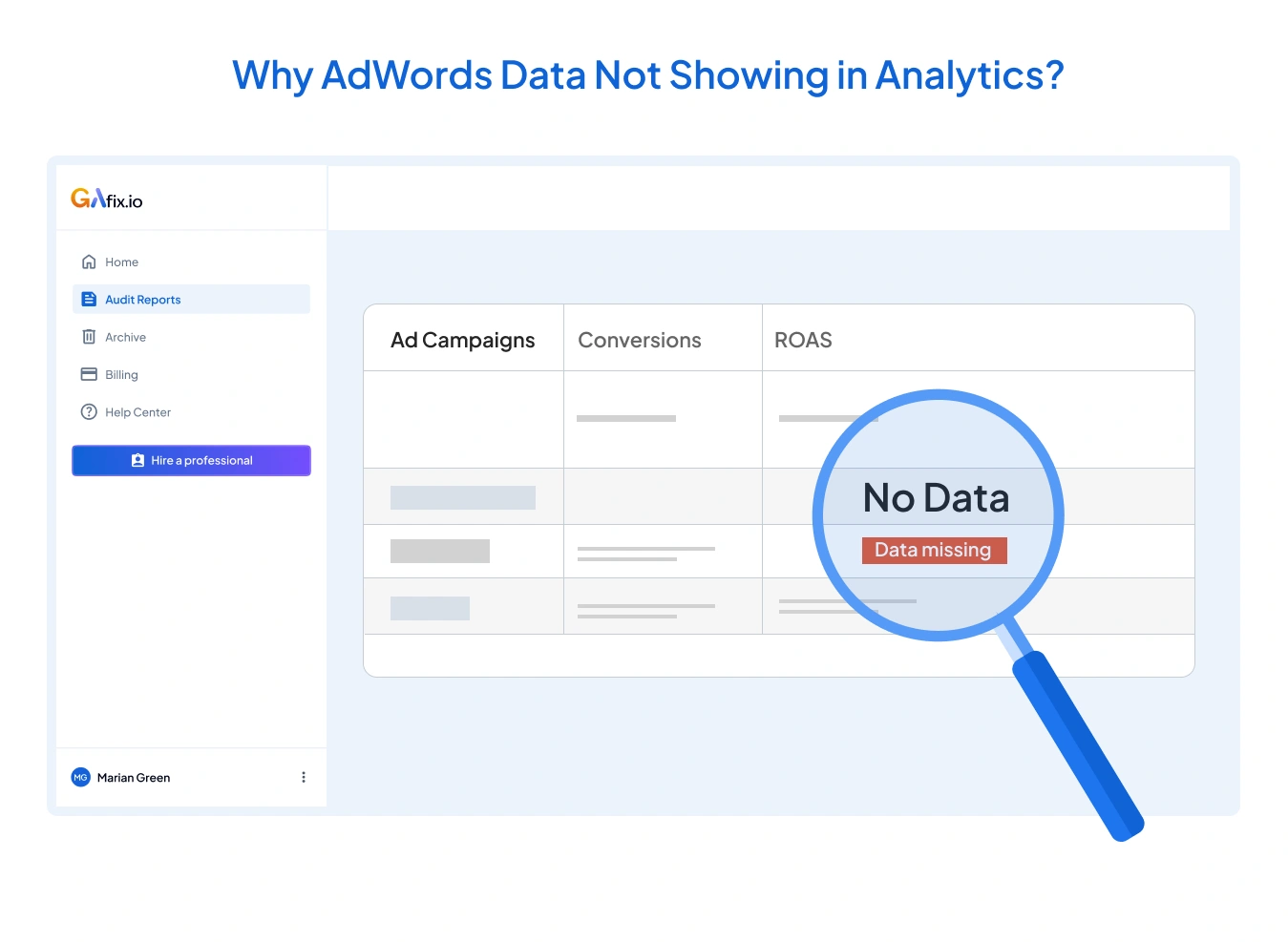
GA4 works very differently from Universal Analytics. It relies on event-based tracking, stricter privacy controls, and a more complex attribution model. When businesses migrate or set up GA4 quickly, small misconfigurations add up. The result is often AdWords data not showing in analytics, even though Google Ads campaigns are live and spending.
In most cases, the problem is not that GA4 is broken. It’s that Ads and Analytics are not yet speaking the same language. Set-up timing, missing permissions, tagging errors, or attribution delays all create data gaps. GAfix frequently flags these GA4 tracking issues during GA audits, especially for the users that assume GA4 “just works” once installed.
Google Ads and GA4 Not Properly Linked
One of the most common reasons for AdWords data not showing in analytics is a broken or incomplete account link. GA4 does not automatically inherit links from Universal Analytics. Even if Ads and Analytics were previously connected, GA4 requires a new link.
When Google Ads not linking to GA4, Ads data will never flow into GA4 reports retroactively. That means past campaign data is permanently lost inside GA4. The link must be active, verified from both platforms, and granted the correct permissions. GAfix often detects the connection links between the platforms, but the critical data sharing settings are still disabled.
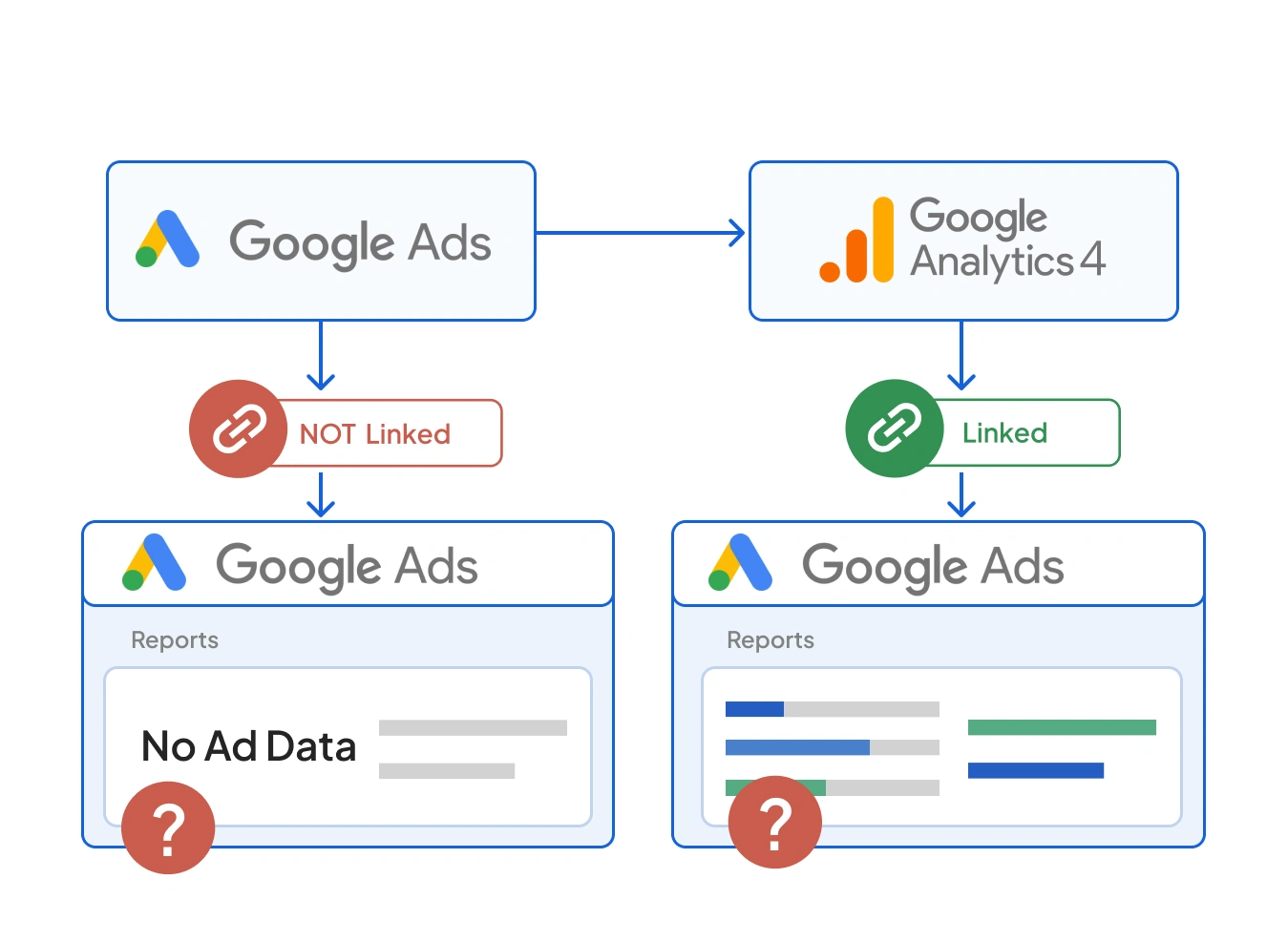
It’s also important to remember that linking alone does not guarantee visibility. GA4 needs time to process incoming Ads data. Even with a perfect setup, AdWords data not showing in analytics can persist for 24–48 hours after linking.
Auto-Tagging Disabled or Broken
Auto-tagging is the backbone of Ads-to-GA4 tracking. When auto-tagging is off, GA4 cannot automatically identify Google Ads traffic, which is a significant cause of why ads data missing in analytics, especially for beginner setups.
Even when auto-tagging is enabled, the redirects can strip the GCLID (Google Click Identifier) parameter from URLs. This can break attribution silently. Using GaFix audits, you can frequently uncover landing pages where GCLID is dropped due to misconfigured redirects, CMS plugins, or content security policies. AdWords data not showing in Analytics becomes inevitable when GA4 can’t read GCLID parameters. Testing landing pages manually or with GAfix validations helps ensure that Ads click identifiers persist from click to page load.
Incorrect or Inconsistent UTM Tagging Causes The Problems that You Are Not Aware Of!
When you notice that your auto-tagging is not working, the critical role of UTMs becomes apparent. If campaigns are tagged inconsistently, Google Analytics 4 (GA4) may incorrectly classify them as paid traffic. This results in a GA4 Google Ads data discrepancy, where Ads reports indicate clicks, but GA4 shows direct or organic traffic.
Incorrect UTMs can distort your analytics. Over time, teams begin to question why performance doesn’t align across platforms. GAfix helps surface these mismatches by auditing source, medium, and campaign naming patterns that confuse GA4 attribution.
Conversion Events Not Configured Correctly
Another major contributor to AdWords data not showing in analytics is conversion misalignment. GA4 conversions must be explicitly marked as conversion events. Google Ads conversions must then import those GA4 events and mark them as primary.
If conversions are firing but not imported or imported but not primary, Ads will not associate them with campaigns correctly. This results in Google Ads conversions missing from GA4 or Ads reports. While you are using GAfix audits, you already know the events that fire correctly but are never promoted to conversions, especially after GA4 migrations.
It’s also vital to ensure event names match exactly. Even a minor naming discrepancy can lead to AdWords GA4 integration issues that are challenging to identify without a thorough audit.
GA4 Reporting Delays and Attribution Windows
GA4 does not always show Ads data instantly. Processing delays of 24–48 hours are normal, especially after setup changes. During this time, reports may show “(data not available)” or showcase partial metrics. Mistakenly, users think that something is broken when it’s simply delayed.
Attribution adds another layer of confusion. GA4 uses data-driven attribution by default, which can redistribute conversions over time. This causes a GA4 Google Ads data discrepancy when comparing GA4 to Google Ads’ last-click models. GAfix highlights these attribution differences so teams understand what they’re seeing instead of assuming AdWords data not showing in analytics.
Tag Installation and GTM Publishing Errors
Sometimes the issue has nothing to do with Ads at all. If the GA4 tag is misinstalled, unpublished, or tied to the wrong Measurement ID, GA4 cannot process incoming traffic. This is indeed a silent failure that directly leads to AdWords data not showing in analytics.
Typical errors include firing the tag only on specific pages, installing GA4 in GTM without publishing, or copying the incorrect Measurement ID. To ensure that these mistakes are detected, GAfix automatically verifies tag presence, firing consistency, and Measurement ID mismatches.
Filters, Privacy Thresholds, and Consent Mode
GA4 introduces stricter privacy controls than Universal Analytics. Filters, consent mode configurations, and privacy thresholds can suppress Ads data, especially for low-volume campaigns. This often explains why ads data missing in analytics, even when everything else looks correct.
Consent banners can cause delay or reduce ad attribution when it blocks tracking until user approval. GAfix helps auditing the consent signals and highlights when Ads data may be suppressed due to privacy settings.
Migration Issues from Universal Analytics
During migration, many teams reuse old assumptions. GA4 does not automatically recreate UA goals, filters, or views. If events and conversions were not rebuilt correctly, AdWords data not showing in analytics becomes a downstream symptom of migration shortcuts.
GAfix specializes in identifying these gaps by comparing expected behavior with actual GA4 configuration. This is especially useful for teams who believe GA4 is “set up” because data exists, but the Ads data does not.

Where to Find Google Ads Data in GA4
Even when the Ads data is flowing, beginners often look at the wrong reports. GA4 displays Ads data primarily in Advertising, User Acquisition, and Ads Campaigns reports. Even if you see everything in standard traffic reports, it can create the illusion of AdWords data not showing in analytics.
GAfix guides users with the right reports and informs whether data is missing or simply misunderstood.
How GAfix Helps Prevent AdWords Data Gaps
GAfix acts as a second pair of expert eyes on your GA4 property. With the help of auditing checkpoints, GaFix can reveal linking status, auto-tagging, event configuration, attribution readiness, and privacy settings in one single scan. Instead of guessing why AdWords data not showing in analytics, teams get clear, actionable recommendations.
For beginners, especially, GAfix reduces the need for trial and error. It ensures that Ad data flows cleanly into GA4, so reporting supports real business decisions—not assumptions.
Final Thoughts
When AdWords data not showing in analytics, the root cause is almost always setup, timing, or attribution, not missing clicks. GA4 demands precision, and once all your settings are configured correctly, it delivers deeper insights than ever before.
While you get an understanding of linking, tagging, conversions, and delays, GaFix can check your configuration and validate your setup, so you can confidently close Ads data gaps. You just need to fix the foundation, and GA4 will finally reflect the actual performance of your Google Ads.
Frequently Asked Questions
Where should I check Google Ads data in GA4?

Google Ads data appears mainly in GA4’s Advertising, Ads Campaigns, and User Acquisition reports. Many users assume AdWords data not showing in Analytics when they check standard traffic reports, where Ads data may not be visible. If the integration is working, these dedicated reports are the first place to confirm whether data is flowing correctly.
Why is my AdWords data not showing in Analytics even after linking GA4?
This usually happens due to processing delays, auto-tagging issues, or incomplete permissions in your GA4 account. Generally, GA4 can take up to 24–48 hours to display Google Ads data after the link is established. If auto-tagging is disabled or GCLID parameters are stripped during redirects, Google Analytics 4 (GA4) will not attribute ad traffic correctly.
Can GAfix help identify why Google Ads data is missing in GA4?
Yes. GAfix audits your GA4 setup to identify why AdWords data not showing in Analytics, including broken account linking, disabled auto-tagging, missing conversions, and attribution issues. Instead of manually checking multiple settings, GAfix provides clear recommendations to quickly and accurately resolve Google Ads and other GA4 integration issues.
Confident Decisions Start with Accurate Tracking
Ensure your GA4 and GTM are correctly configured, reliable, and ready for scale.
%20.webp)



Subscribe To Our Newsletter


