


.webp)



You open your analytics reports expecting a clean read on performance, and the numbers don’t line up. One dashboard says 10,000 users. Another shows 8,200. After going through enough GA4 implementations and GA4 audits, this kind of mismatch is routine—especially in SaaS and eCommerce setups.
GA4 data discrepancies show up in a large share of audits we run. And the stakes aren’t small. In fact, Gartner estimates that poor data quality costs organizations an average of $12.9 million per year, highlighting how critical accurate analytics data is for decision-making.
The good news is that these differences are almost always explainable, and once you understand the root causes, you can either fix them or document them as acceptable variance.
Let’s explore the five most common reasons GA4 numbers don’t match other platforms.

Fast Answer: The 5 Most Common GA4 Data Discrepancy Causes
GA4 rarely lines up perfectly with other analytics tools or platforms. That’s not a bug in Google Analytics—it’s just how different systems collect, process, and attribute data. If you’ve noticed some discrepancies in your Google Analytics property, they usually come from these underlying differences rather than something visibly broken.
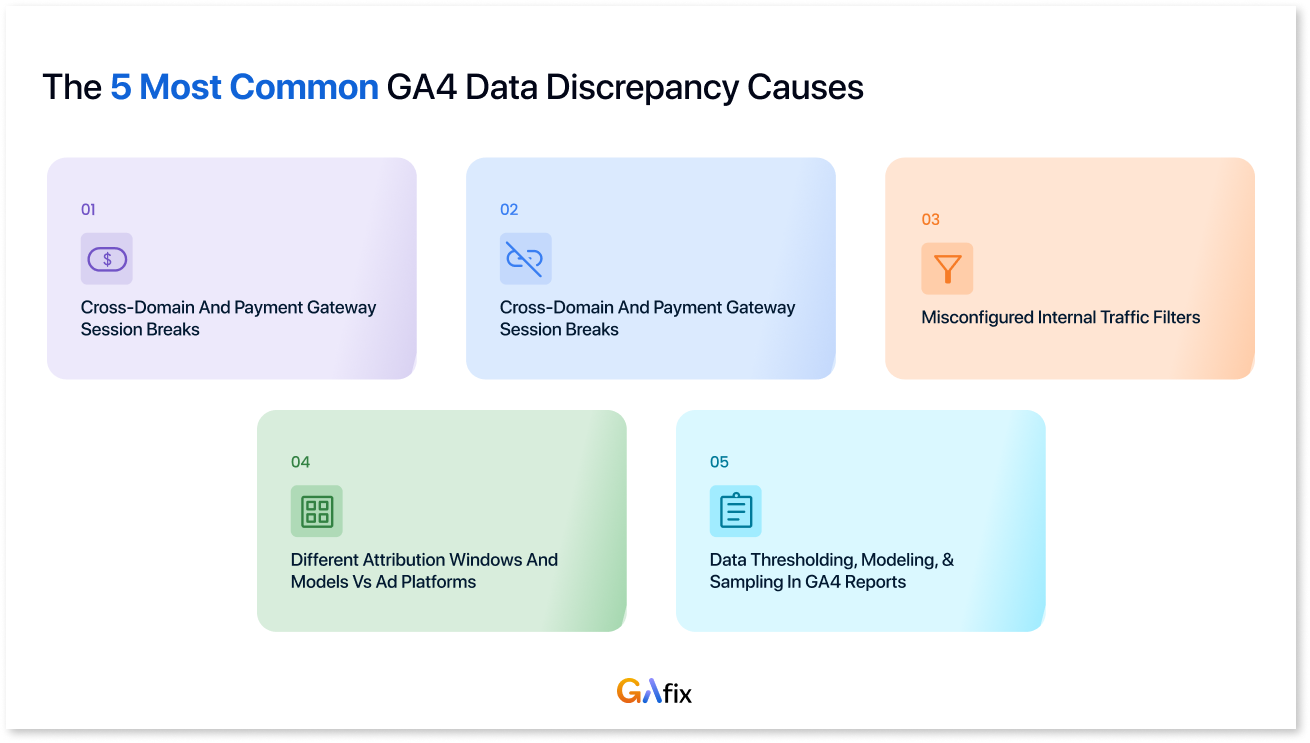
Here are the five drivers we encounter most often:
- Cookie consent and ad blockers: In regions with strict privacy rules, consent banners stop GA4 from firing until a user accepts tracking. Add browser protections like Safari’s ITP or common ad blockers, and a portion of visits simply never reach GA4.
- Misconfigured internal traffic filters: Internal traffic often goes unfiltered, quietly inflating sessions and user counts. In other cases, teams activate filters too early and accidentally exclude legitimate customer traffic.
- Cross-domain and payment gateway session breaks: When users move between the main domain, subdomains, and payment providers like PayPal or Stripe, GA4 frequently starts a new session. That breaks attribution and can inflate user counts or misassign conversions.
- Different attribution windows and models vs ad platforms: GA4 uses a data-driven attribution model by default. Platforms like Meta or Google Ads often rely on last-click or view-through attribution, so the same conversion can be credited very differently across systems.
- Data thresholding, modeling, and sampling in GA4 reports: GA4 UI reports can apply data sampling and thresholding, especially for low-volume segments or long date ranges, making reported data estimates rather than exact figures.
Most B2B SaaS and eCommerce sites we work with see 5–25% differences between GA4 and ad platforms or BI tools. The goal isn’t a perfect match; it’s a consistent, explainable variance that stakeholders can trust.
Note: GAfix, NeenOpal’s GA4 auditing tool, can automatically flag several of these discrepancy drivers, including missing internal traffic filters, consent mode gaps, and cross-domain tracking issues.
What We Mean by GA4 Data Discrepancies
In practical terms, a GA4 data discrepancy occurs when your GA4 metrics don’t align with numbers from other tools, Meta Ads, your CRM, Microsoft Clarity, Stripe, or internal logs for the same time frame. It’s the moment when your marketing team says GA4 shows 500 conversions, but Google Ads claims 620, and everyone starts questioning whose data is “right.”
Here are the key pairs where discrepancies typically surface:
- GA4 vs ad platforms: Meta Ads, Google Ads, LinkedIn—differences in attribution settings, lookback windows, and click vs view tracking
- GA4 vs product analytics: Mixpanel, Amplitude—different event-based model implementations and backend SDK firing
- GA4 vs experience tools: Microsoft Clarity, Contentsquare, Insightech—tools that capture data regardless of consent or ad blocker status
- GA4 vs ELT/warehouse tools: Fivetran, BigQuery exports, internal dashboards—raw events vs processed/filtered data
From an analytics engineering perspective, every platform has its own counting logic: how events are defined, how sessions are calculated, and what consent scope applies. So “data parity” doesn’t mean exact equality-it means alignment within a reasonable, explainable range (typically ±5–10% for basic metrics like users compared or session counts).
Consent, Privacy, and Technical Loss: Why GA4 Often Undercounts
For EU traffic post-2021 (GDPR, ePrivacy, CNIL enforcement), NeenOpal routinely sees GA4 miss 15–40% of sessions compared to server logs due to consent requirements and technical blocking. This is one of the most significant sources of GA4 undercounting.
- Cookie consent banners: When your consent banner only fires GA4 after users click “Accept,” all events from users who ignore or decline the banner are dropped entirely. Without a consent mode configured, GA4 simply has no record of those visits.
- Consent Mode and modeled data: Once Advanced Consent Mode is enabled, GA4 starts filling in gaps using modeled behavior when users decline analytics_storage. At that point, some conversions and user counts are no longer direct logs; they’re estimates based on observed patterns. That’s where discrepancies start appearing against tools like Microsoft Clarity, which typically only report what they directly capture
- Ad blockers and ITP: Safari and Firefox tracking prevention, along with common ad blockers, can block gtag.js or GTM entirely. This disproportionately affects B2B audiences using privacy tools on corporate devices, meaning GA4 trends lower vs. backend event logs for high-value segments.
In B2B SaaS, we’ve seen up to 25% of pageviews blocked in heavily privacy-conscious segments. If you’ve never compared GA4 with server logs, do it at least once to estimate your own loss rate—it’s often higher than expected.
Internal Traffic: A Hidden Driver of GA4 Data Discrepancies
Misconfigured or missing internal traffic filters are one of the biggest sources of inflated GA4 numbers we encounter during audits, especially for SaaS products with active QA cycles and sales demos.
Here’s what typically ends up counted as internal traffic in GA4: office networks and employee VPNs, agencies or contractors reviewing the site, QA vendors running tests, and, fairly often, staging, UAT, or demo environments sending hits into the production GA4 property. The effects show up quickly.
Marketing teams start questioning spikes in “Direct” or “Organic” traffic during testing cycles. Product teams read feature adoption numbers that look healthier than reality because QA activity is mixed in. And when those numbers are compared against BI dashboards or CRO tools that already exclude internal segments, the gaps don’t make sense.
GA4 does not automatically exclude internal traffic. Teams must configure rules and filters explicitly in Admin & Data Settings. This is a critical distinction from some other analytics setups where filtering happens by default.
GAfix is designed to detect missing internal traffic filters and report them as a critical configuration issue during GA4 audits.
How to Configure Internal Traffic Filters in GA4 (Step-by-Step)
This section reflects the kind of setup work analytics engineers end up doing when GA4 is tied to a real SaaS or eCommerce product, not a clean demo environment.
Step 1: Define what “internal” means for your organization.
Start by deciding which traffic should count as internal. That usually includes marketing, product, development, and QA teams, along with sales teams running demos. Offices in specific locations—like a Bengaluru HQ or a New York office—often fall into this bucket, as do remote employees connecting through company VPNs.
-1.webp)
Step 2: Collect IPs and patterns
Work with IT or network teams to gather known IP ranges. That might include static office IPs (for example, 52.66.x.x for a Bangalore office or 34.201.x.x for a Virginia-based AWS VPN). Document VPN ranges where possible and note any consistent home-office patterns if they exist. In some cases, especially with dynamic or CGNAT ISPs, filtering individual users simply isn’t reliable, and it’s better not to force it.
Step 3: Configure internal traffic rules in GA4
In GA4, navigate to: GA4 is Admin → Data collection and modification → Data streams → [stream] → Configure tag settings → Define internal traffic. Create clearly named rules, so you know what they represent later. For example, “HQ Bangalore,” “Agency – London,” or “VPN – US East.” Use GA4’s match options, such as IP address equals, begins with, or falls within a defined range.
Step 4: Set up traffic_type parameter handling
GA4 sets traffic_type=internal when rules match—this is what filters use to exclude hits. Check this parameter in DebugView to confirm it’s attached to events from internal locations.
.webp)
Step 5: Create and manage filters
Go to Admin → Data Settings → Data Filters → Create filter of type “Internal traffic.”
Understand the three states:
- Testing: Tags traffic but doesn’t exclude it (use this first)
- Active: Permanently excludes matching traffic
- Inactive: Filter is disabled
Always start with testing mode.
Step 6: Test before activating
Compare standard reports with and without internal traffic during testing. Run at least 3–7 days in testing mode to quantify your internal share. You may find that a noticeable share of what GA4 reports as “Direct” traffic is actually coming from internal users. We’ve seen cases where it’s around 18%.
Step 7: Activate carefully
Once a filter is activated, the excluded data is gone for good. GA4 doesn’t keep a recovery path. That’s why filters should only be turned on after marketing and product teams understand what will disappear from reporting.
Common Internal Traffic Filter Mistakes That Create Data Discrepancies
Here are some of the misconfigurations that show up repeatedly when auditing GA4 setups, along with the kinds of discrepancies they tend to create.
Activating filters too early
Teams switch filters to Active before validating IP coverage or confirming the traffic_type parameter. The result is that legitimate customer traffic, especially from large corporate networks or shared office environments, gets excluded without anyone realizing it.
Symptom: A sudden 10–30% drop in users and sessions from specific countries or ISPs starting on a clear date in the timeline.
Using incomplete IP ranges
Often, only the headquarters IP range is filtered. Remote employees, contractors, and agencies remain unfiltered and continue generating internal traffic inside GA4.
Symptom: GA4 still shows heavy weekday traffic from cities where the company has large teams, while backend systems or product analytics show noticeably lower activity.
Forgetting staging and test environments
The same GA4 measurement ID ends up running in both production and staging, but internal filters are only configured for production assumptions. Test traffic leaks straight into reporting.
Symptom: Event and conversion spikes during release cycles that don’t correspond with marketing campaigns or user growth.
Misunderstanding dynamic IPs
Teams try to filter home IPs for remote workers, not realizing those addresses change frequently. The filters work briefly, then quietly stop working.
Symptom: Internal traffic appears and disappears inconsistently, making comparisons with CRM or server-side logs messy.
Assuming agency traffic is minimal
External CRO, SEO, QA, or development partners generate far more activity than expected, especially during testing cycles. Their networks are rarely included in internal traffic filters.
Symptom: Landing pages or experiments appear unusually successful during test periods, driven mostly by agency traffic.
Confusing report filters with data filters
Some teams rely on UI-level filters or segments in reports to hide internal traffic, assuming it’s removed from GA4 entirely. It isn’t. The raw data still contains those hits.
Symptom: Data exported through BigQuery or APIs includes internal traffic that doesn’t appear in on-screen reports, creating confusing discrepancies.
Other Technical Reasons Your GA4 Data Doesn’t Match
Once you move past internal traffic and consent mechanics, a few technical patterns keep showing up when GA4 is compared with tools like Fivetran, Clarity, Insightech, or ad platforms such as Meta and Google Ads.
1. Cross-domain tracking and payment gateways
Sessions often break when users move between a primary domain, subdomains, and third-party payment providers (for example, example.com → paypal.com → example.com). Without proper cross-domain configuration and referral exclusions in GA4, the same journey can be counted as multiple sessions, which usually distorts attribution around conversions.
2. Session timeout settings
GA4 defaults to a 30-minute session timeout, though it can be adjusted. Other tools frequently apply different timeout logic. The result is fairly predictable: session counts diverge even when pageview totals look similar, and session duration metrics start drifting between platforms.
3. Data processing, thresholding, and sampling
Standard GA4 reports can apply thresholding or sampling, especially when analyzing small segments or large date ranges. A common trigger is Google Signals. When enabled, GA4 applies thresholding to protect user identity, which can hide certain rows of data in the interface.
Because of this, teams often see differences when comparing GA4 UI reports with GA4 Data API or BigQuery exports, where the underlying data appears more granular and less restricted by thresholds.
4. Attribution model differences
GA4 uses a data-driven attribution model by default. Ad platforms such as Meta Ads frequently rely on last-click or short click-through windows, like a 1-day click. Without aligning attribution windows and models, conversion numbers will almost always look inconsistent across the two systems.
5. Event implementation differences
Event structures rarely match perfectly across tools. Naming conventions, parameters, and trigger logic rarely line up perfectly across Google Tag Manager, product analytics tools, and backend event pipelines. GA4 data retention can complicate this further when historical comparisons are involved, because the data window itself may not match what other systems are storing.
How to Systematically Troubleshoot GA4 Data Discrepancies
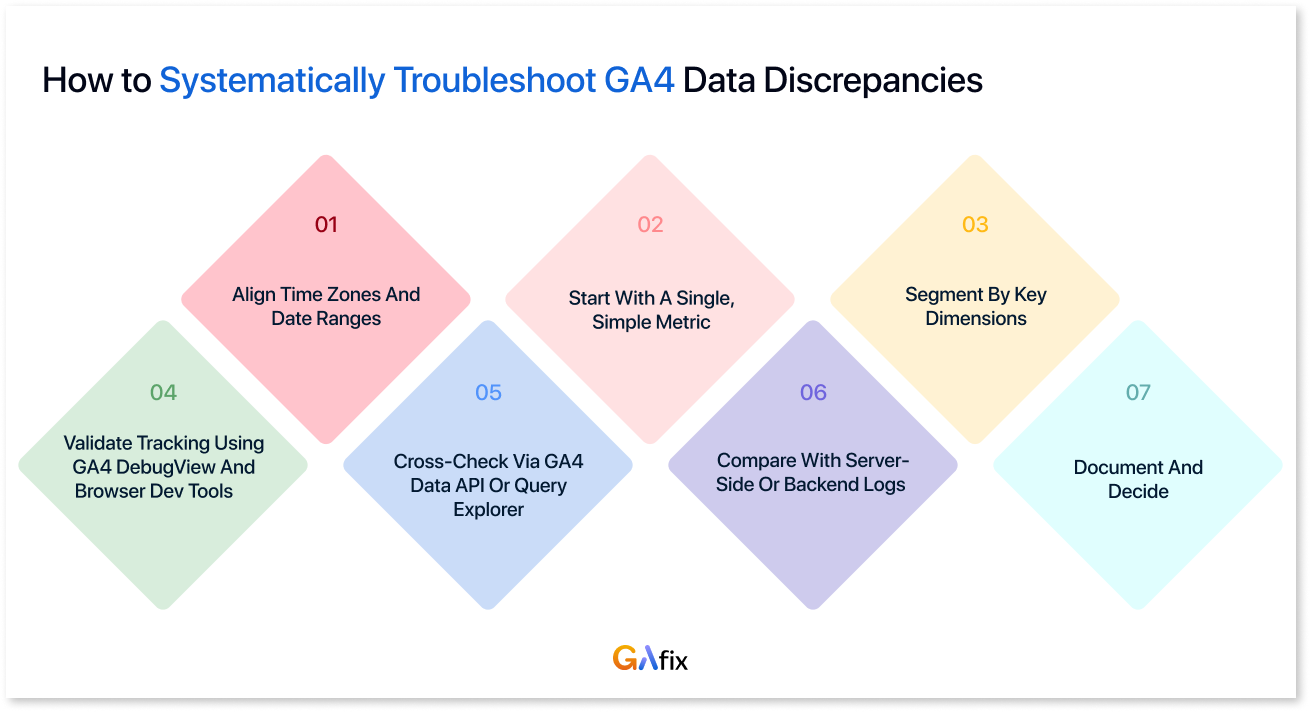
Step 1: Align time zones and date ranges
Start with the details that quietly break comparisons. If the GA4 property time zone doesn’t match the BI tool, warehouse layer, or reporting environment, the numbers will drift even when the underlying events are correct. It’s a simple check, but it’s responsible for more mismatches than most teams expect.
Step 2: Start with a single, simple metric
Before touching conversions or revenue, compare something simple like total sessions or pageviews. Establish the baseline difference first. For example, GA4 reports 90k sessions, Clarity shows 98k. That’s roughly an 8–9% gap. Knowing the size of the gap helps determine whether you’re looking for normal tracking loss or something more structural.
Step 3: Segment by key dimensions
Once the baseline gap is clear, break it down by device category, country, and source/medium. This is usually where patterns show up. Sometimes the discrepancy concentrates in places like mobile Safari traffic from EU regions, which often points toward consent restrictions or browser tracking prevention rather than a tagging failure.
Step 4: Validate tracking using GA4 DebugView and browser dev tools
The next step is to verify what actually fires in the browser. Open the site, run through a key action such as signup, purchase, or whatever matters, and watch the events move through DebugView. This is where a lot of discrepancy in GA4 data starts to show itself. Sometimes the event fires twice, sometimes it fires once but drops a parameter, and sometimes it appears in DebugView but behaves differently in reporting.
Step 5: Cross-check via GA4 Data API or Query Explorer
If numbers still don’t reconcile, pull the same metrics and dimensions using the GA4 Data API or Query Explorer. Match the exact query structure used by tools like Fivetran or warehouse dashboards. This helps determine whether the discrepancy is happening during data extraction or inside the GA4 interface itself.
Step 6: Compare with server-side or backend logs
For important flows like purchases, signups, and lead submissions, compare GA4 events against backend records such as an orders table in PostgreSQL or CRM signup logs. This is usually where the real tracking loss becomes visible, often tied to consent denial, ad blockers, or invalid traffic filtering.
Step 7: Document and decide
Once each source of discrepancy is identified, like consent loss, internal traffic, or cross-domain issues, document it. Maintaining a simple “known differences” reference prevents the same debate from resurfacing in every reporting meeting and helps teams interpret the numbers with the right context.
How GAfix Help You Reduce GA4 Data Discrepancies
GAfix AI works as a practitioner-led analytics and engineering partner supporting GA4 across SaaS, eCommerce, and larger web properties. The work isn’t limited to advising on strategy; we’re usually involved in the implementation itself, auditing existing setups, and rebuilding tracking where needed, so the analytics environment holds up once teams start relying on it.
GAfix’s typical engagement includes:
- Full GA4 implementation audit (GTM, consent, internal traffic, cross-domain, server-side tagging)
- Mapping GA4 events to business objects (users, accounts, subscriptions, orders) in the data warehouse
- Building dashboards that reconcile GA4 with backend and ad platform data for executives who need to see how other metrics align
What GAfix does:
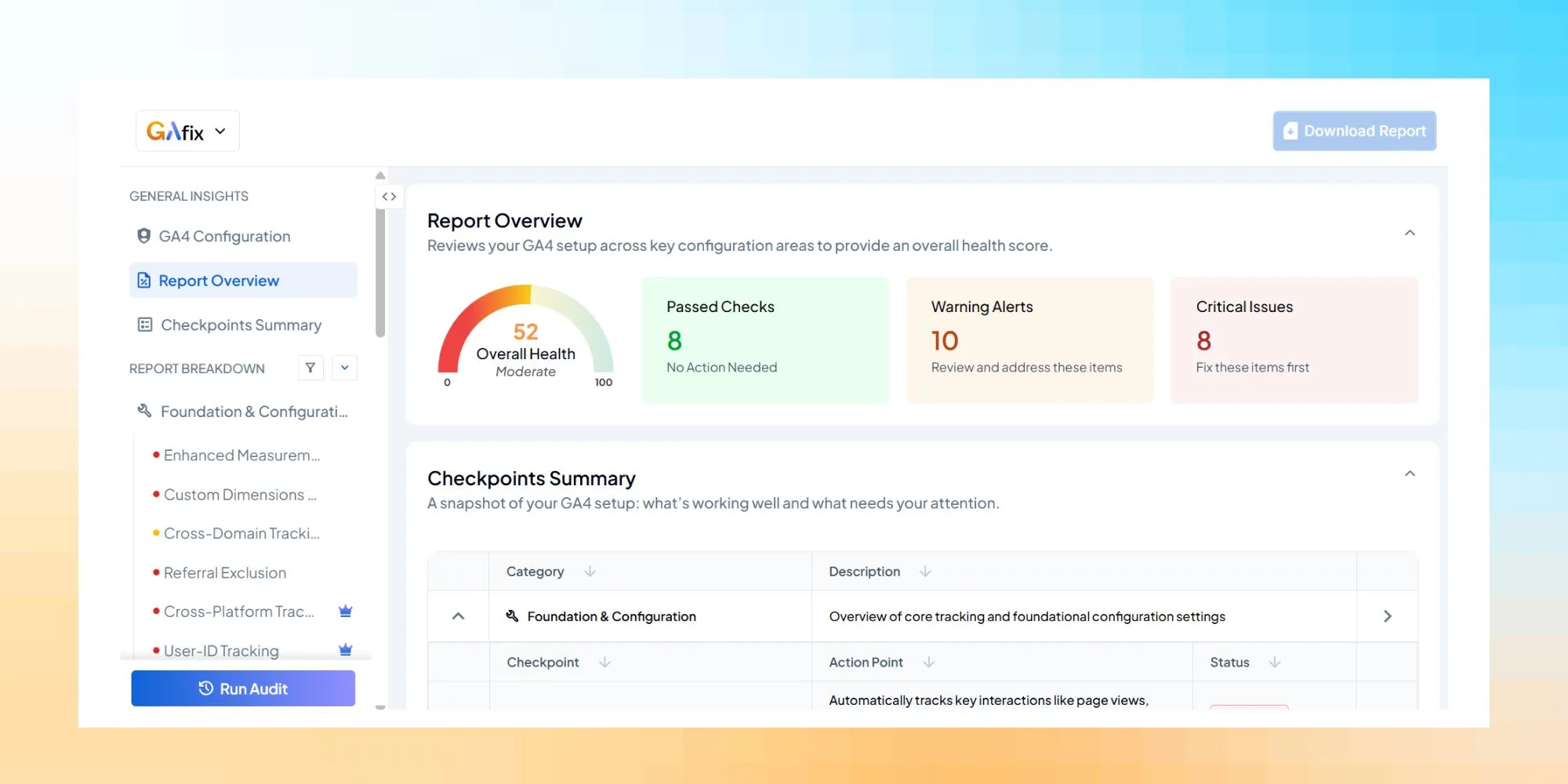
- Automated GA4 auditing tool that checks for misconfigurations like missing IP filters, incorrect referral exclusions, absent enhanced measurement, and property-level settings that can lead to data discrepancies
- Provides prioritized issue lists so teams know what to fix first for data quality
- Conducts regular audits to catch configuration drift as websites evolve
Benefits for marketing and product teams:
- More trustworthy traffic, user, and session counts, and conversion numbers for campaign analysis
- Reduced time spent arguing about whose numbers are “right” across platforms
- Faster onboarding of new analysts because the data model and known discrepancies are documented
While perfect alignment across tools is impossible, disciplined configuration and regular audits make GA4 a reliable decision engine for your business.
If you’re dealing with GA4 data discrepancies, the next step is usually a proper audit. That can mean having a team like GAfix to check for common problems, such as internal traffic leakage or consent configuration issues. Both approaches are meant to surface the kinds of implementation gaps that tend to sit unnoticed until reporting starts to look off. The sooner you identify your specific discrepancy sources, the sooner your team can stop debating numbers and start making decisions.
Frequently Asked Questions
What should you check if you've noticed some discrepancies in your Google Analytics property?

If you've noticed some discrepancies in your Google Analytics property, start by checking internal traffic filters, consent mode configuration, cross-domain tracking settings, and attribution models. It’s also helpful to compare GA4 data with backend logs or BigQuery exports to understand where the differences originate.
How does GA4 data retention affect reporting discrepancies?
GA4 data retention controls how long event-level data is stored for analysis. If GA4 retention is set to shorter periods (such as 2 months), historical comparisons with other systems or warehouses may produce discrepancies because the underlying data windows are different.
How can you reduce GA4 data discrepancies?
You can reduce GA4 data discrepancies by properly configuring consent mode, internal traffic filters, cross-domain tracking, and attribution settings. Running regular analytics audits also helps identify configuration issues before they impact reporting.
Confident Decisions Start with Accurate Tracking
Ensure your GA4 and GTM are correctly configured, reliable, and ready for scale.
.webp)

Subscribe To Our Newsletter


