


%20for%20Clean%2C%20Trustworthy%20Data.webp)



When you are counting the visitors on your website, you don't even realize that you are tracking your own interactions. It can be a consistent problem for large businesses with many employees. Every click made by your team can distort your analytics game. This is why exclusion is critical.
Internal traffic, like testing, repeated visits, and QA, can contribute to 10–30% of total website sessions, which disturbs your key metrics like engagement and conversions. That’s why setting up Google Analytics IP exclusion is critical. Without it, you’re not analyzing real user behavior; you’re analyzing noise.
In this blog, we’ll show you how to exclude IP in Google Analytics (GA4) and apply the right Google Analytics filter out IP strategies to keep your data clean, accurate, and decision-ready.

Why Excluding Your Own IP is Urgent for GA4 Accuracy
By default, GA4 records every interaction, whether it’s a real customer exploring your site or someone on your team refreshing pages, testing forms, or checking tracking. The problem? GA4 doesn’t automatically know the difference.
That’s where Google Analytics IP exclusion becomes essential. If you don’t actively exclude IP in Google Analytics, your reports start reflecting internal behavior instead of actual user journeys. Over time, this creates a layer of noise that’s hard to spot but easy to trust and that’s where decisions go wrong.
GA4 also handles this differently from Universal Analytics. There are no simple view filters anymore. To properly filter out IP in Google Analytics, you need to define internal traffic at the data stream level, which tags it with a specific parameter. Then, you apply a data filter at the property level to exclude it from reporting. Miss either step, and your data remains compromised.
This is a common issue. Many setups include internal traffic rules, but the filter is either never activated or left in testing mode for too long, so nothing actually gets excluded.
Here’s what that looks like in practice:
- Conversion rates appear higher than they really are because internal users trigger actions repeatedly
- Customer acquisition cost (CAC) seems lower due to inflated session and lead counts
- ROAS gets overstated when internal or agency traffic mimics genuine conversions
- A/B test results become unreliable since internal behavior doesn’t match real users
- Attribution data starts crediting internal activity to paid or organic channels
Takeaway: Exclude IPs before you trust any GA4 funnel, attribution model, or experiment result.
Quick Answer: How to exclude an IP in GA4 in under 10 minutes
If you want to exclude ip from Google Analytics right now, here’s the fastest path. Deeper explanations follow in later sections.
Find your public IP address:
- Search “what is my IP” in Google and copy the IPv4 address (e.g., 203.0.113.24).
Define internal traffic in GA4:
- Admin → Data Streams → select your Web stream (verify by Measurement ID like G-XXXXXXX).
- Click configure tag settings → Show all → Define internal traffic → Create.
- Name the rule descriptively (e.g., “HQ_Office_203-0-113-24”).
- Set traffic_type to “internal”.
- Match type: “IP address equals”.
- Value: paste your IP.
- Save.
Activate the Internal traffic data filter:
- Admin → Data settings → Data filters → find “Internal traffic” (or create one if missing).
- Set filter state to Testing first.
- Wait 24–48 hours, then switch to Active.
Important warnings:
- Filters are forward-looking only. They do not clean historical data—only future events.
- GA4 can take 24–36 hours before filtered events disappear from reports.
GAfix.ai can confirm in a free audit whether internal traffic is actually being excluded from your key conversion paths.
GA4 internal traffic basics: how Google actually uses your IP
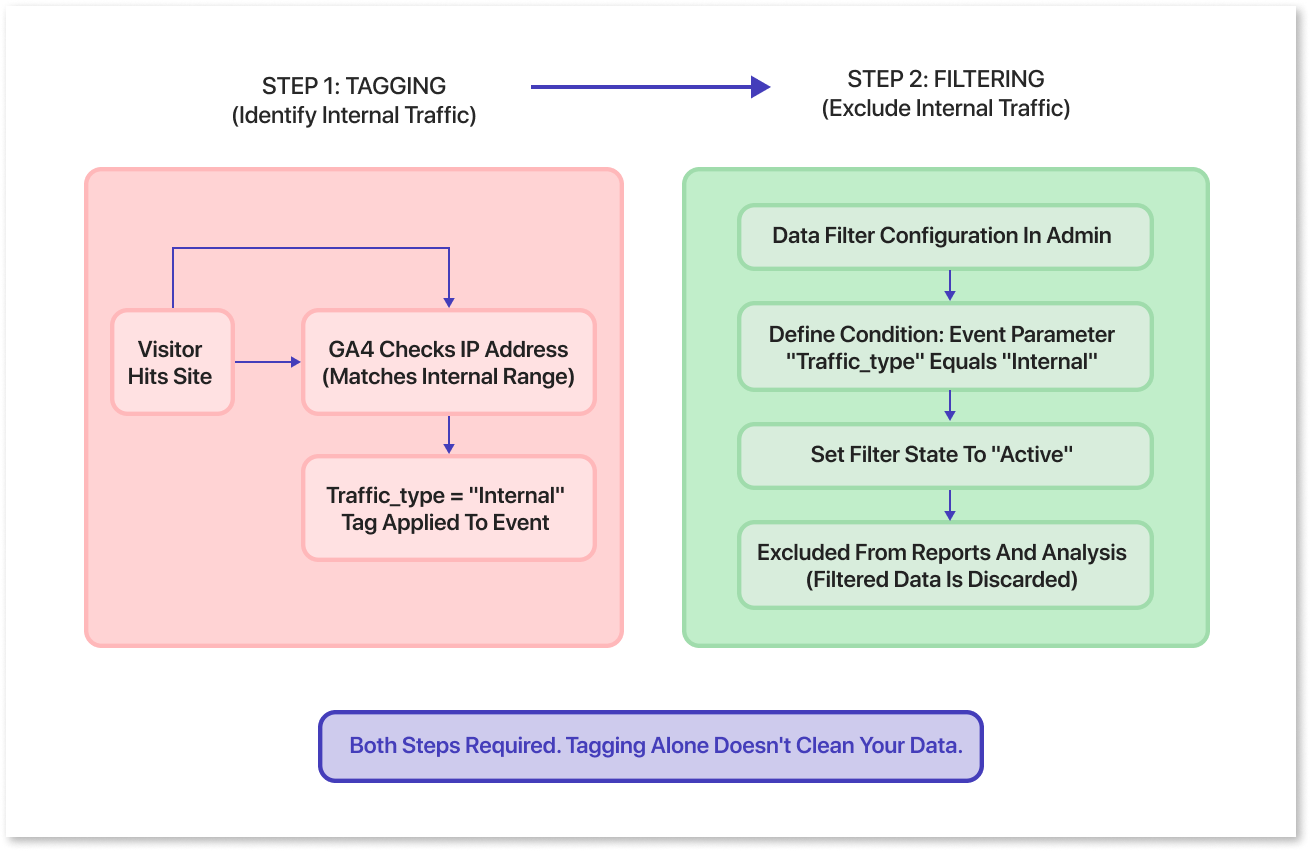
GA4 doesn’t simply ignore IP addresses. Instead, it uses them behind the scenes to classify traffic. Every time someone visits your site, GA4 evaluates their IP and assigns a parameter called traffic_type to that interaction.
When you set up Google Analytics IP exclusion, GA4 checks incoming events against your defined IP rules. If there’s a match, it tags those events as internal traffic, something like traffic_type = internal (or a custom label such as “qa_team”). This tagging happens at the moment data is collected.
But here’s the part many teams miss: tagging alone doesn’t clean your data.
To properly exclude IP in Google Analytics, you need two things working together:
- Internal traffic rule → identifies and tags traffic based on IP address
- Data filter → actually removes that tagged traffic from your reports
If you only set the rule and skip the filter, nothing gets excluded. Your reports will still include internal activity, even though it’s labeled.
This is why Google Analytics filters out IP setups that often fail in practice—everything looks configured, but the data is still noisy.
A few details here tend to get overlooked in practice. Only users with Editor-level access or above can configure these filters, which already limits who can catch or fix issues. Once a data filter is switched to active, anything it excludes is permanently removed from standard reports—there’s no way to recover it later if the rule was wrong. On the other hand, if teams leave the filter in testing mode (which happens more often than expected), internal traffic keeps flowing into reports, quietly skewing numbers.
Method 1: Excluding internal traffic by IP address in GA4
IP-based exclusion is usually the simplest route, especially for teams operating from fixed office IPs or a controlled VPN setup. If you have 1–5 stable addresses—like your HQ, an agency office, or an on-prem data center—this method handles the basics quickly.
Pros:
- Zero dev dependency.
- Setup takes under 10 minutes.
- Reliable for stable, on-premises networks.
Cons:
- Fails with dynamic residential IPs (many ISPs rotate them hourly).
- Misses remote workers on mobile data or home networks.
- Some corporate VPNs use rotating exit IPs that can’t be tracked.
- Easy to forget when offices move or ISPs change.
In 2026, this method still matters. But for larger organizations with distributed teams, treat it as minimum viable hygiene—not the complete solution.
Two pieces need configuration:
- Define internal traffic rules for your IPs.
- Turn on the Internal traffic data filter.
Step 1: Define your internal IP addresses in GA4
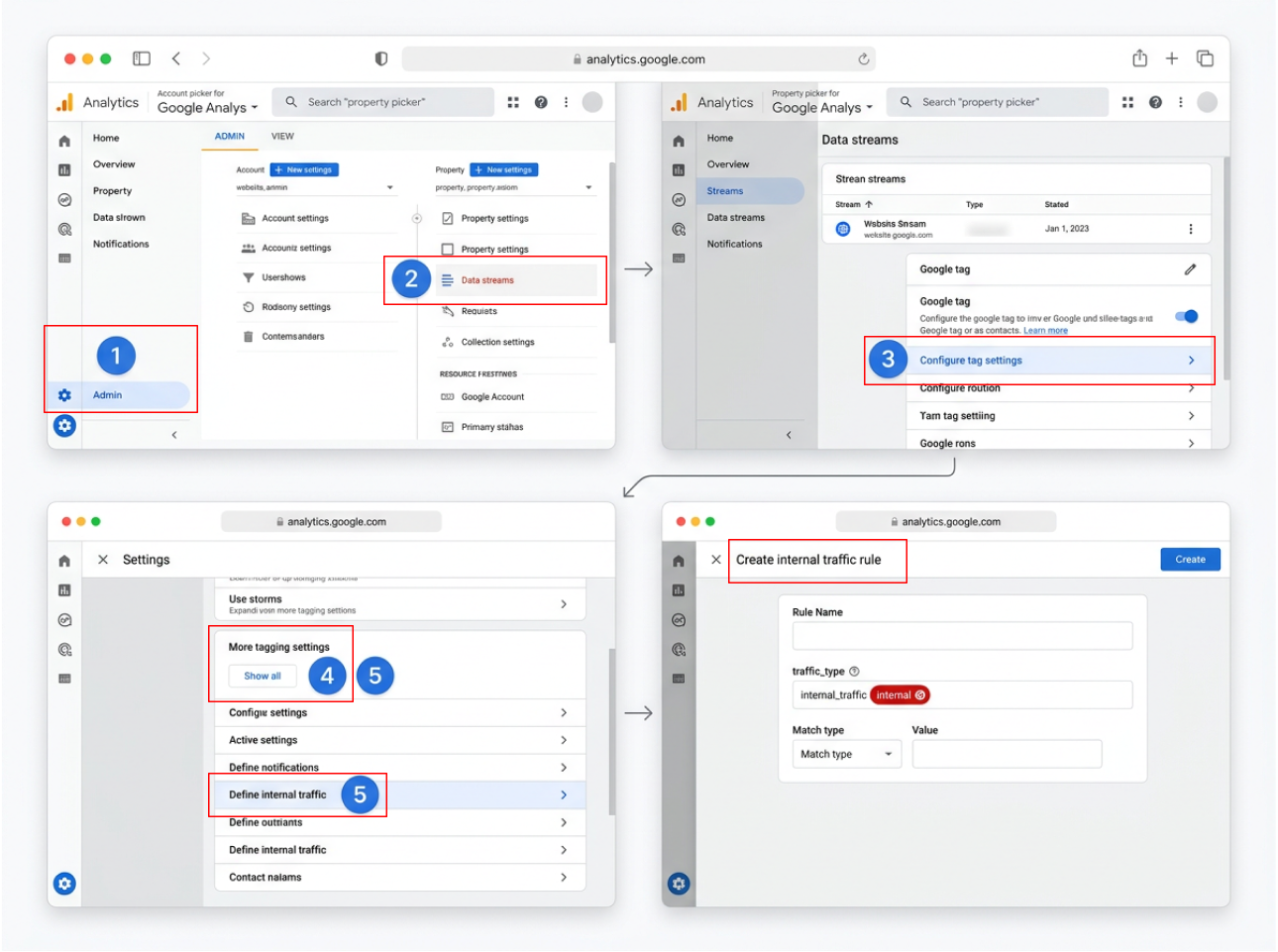
Navigate to the right place first, because this is where small mismatches tend to creep in: Admin → Data streams → select your Web data stream, and double-check the Measurement ID actually matches the site you think you’re configuring. Then go to Configure tag settings → Show all → Define internal traffic → Create. When setting up the rule, the naming matters more than it seems—use something explicit like “internal_hq_blr_203_0_113_24” so you can trace it back later without guessing.
For traffic_type, “internal” is standard, but a custom value can help if you’re segmenting multiple internal sources. Match type needs a bit of judgment: “IP address equals” works for a single static IP, “begins with” is fine for simple ranges like “192.168.1.”, and regex is there if things get messy. Enter the IP value carefully (for example, 203.0.113.24), and if you’re adding multiple IP addresses, use Add condition so they’re evaluated with OR logic—this is where misconfigurations often slip in. For multiple IP addresses, click Add condition to include additional IPs with OR logic.
IPv4 and IPv6 behave slightly differently. If your network uses IPv6, document both and create separate rules or use regex patterns like “^2001:db8::/32”. This makes troubleshooting easier later—you’ll know exactly which internal source is leaking if problems arise.
Reminder: Once rules are saved, events from those IPs carry traffic_type = internal. But they’re still visible in reports until you activate a data filter.
Step 2: Create and configure the Internal traffic data filter
Navigate to filter settings:
- Admin → Data settings → Data filters.
- Check if an “Internal traffic” filter exists. If not, click Create filter.
Configure the filter:
- Filter name: Something clear like “Internal traffic (IP-based) – 2026”.
- Filter type: Internal traffic.
- Parameter: traffic_type equals “internal”.
Understand filter states:
- Testing: Events are tagged with a test data filter name dimension but still appear in reports. Use this for validation.
- Active: Matching events are excluded from all standard reports and most exports. This is permanent.
Keep the filter in Testing for 24–48 hours. Check that no external traffic is accidentally classified as internal before switching to Active.
GA4 batches data, so it can take 24–36 hours before Testing dimension data appears consistently in Explorations. GAfix.ai audits check whether your Internal traffic filter is in the right state and matches the IP rules you defined.
Step 3: Test that IP-based exclusion actually works
Verification process:
- From an internal network (using one of your defined IPs), open your website and trigger a few key events: page_view, sign_up, purchase, or whatever matters to your funnel.
- In GA4, go to Explorations → Free form.
- Add “Test data filter name” as a dimension alongside “Event count” as your metric
- Confirm that events coming from your internal IP are being tagged with the expected internal traffic filter name.
To make those hits easier to isolate, capture timestamps, or append something identifiable like qa-ip-test-2026 to the URL. One common point of confusion: DebugView often stops showing excluded events once the filter is set to Active. That’s expected behavior, not a tagging issue. If internal events are still showing up in standard reports after activation and a ~36-hour wait, there’s almost always a misconfiguration; typically, the IP rule doesn’t match exactly, or the filter state wasn’t applied as intended. If internal traffic continues leaking into conversion paths or attribution reports, it’s worth running a GAfix.ai audit to validate the setup end-to-end.
Method 2: When IP filters aren’t enough! Alternatives for remote and large teams
In practice, IP-based rules fall short for remote or hybrid teams. By 2026, it’s common to see 40–60% of internal traffic bypass these filters entirely because employees aren’t coming from fixed networks. To compensate, teams usually layer in alternative approaches. A data layer flag is one option—developers push something like user_type = internal at login, and GTM or gtag maps that to traffic_type. Another approach is cookie or URL-based marking, where employees hit a specific URL that sets a first-party cookie, and GTM reads that to tag subsequent events. More advanced setups move this logic into GTM configurations or server-side tagging, sometimes routing internal traffic to a separate property or using IP geolocation APIs as a fallback.
Real-world setups often combine IP filtering with these methods for complete coverage. GAfix.ai frequently flags properties where only one partial method is implemented, leading to undercounted or overcounted internal traffic.
Takeaway: If your workforce rarely shares a single office IP, treat IP exclusion as a safety net, not your primary guardrail.
Option A: Data layer flags for logged-in internal users
The concept: developers push a value like user_type = internal into the data layer when employees or test accounts log in.
Google Tag Manager (or gtag.js) reads that value and sets traffic_type accordingly—independent of IP address.
This works well for SaaS products and internal tools where staff must authenticate with company accounts. It catches internal users regardless of their network location.
Limitation: Pre-login pages (homepage, pricing page, public blog) browsed by staff may still be treated as external traffic unless additional logic handles anonymous sessions.
Regardless of implementation, GAfix.ai checks whether internal flags are consistent across pages and events, not just on login.
Option B: Cookie or URL parameter for “marking” internal devices
The pattern is fairly straightforward in theory: employees visit a URL such as https://example.com?internal_user=true, which sets a first-party cookie in their browser. GTM then reads that cookie and sets traffic_type = internal, allowing GA4 filters to exclude those events. It works, but only within certain limits.
Benefits:
The main advantage is flexibility—useful for freelancers, agencies, or distributed teams where shared IPs aren’t reliable, and it doesn’t require a login flow.
But the gaps show up quickly in real use. If cookies are cleared, the exclusion is lost. Browser privacy settings or incognito sessions often bypass it entirely. And if someone switches browsers or devices, they have to repeat the process, which doesn’t always happen consistently. This is why periodic audits matter. Cookie-based setups tend to degrade quietly after site updates or tagging changes, and you won’t notice unless you’re actively checking.
Common GA4 IP exclusion mistakes (and how to avoid them)
.webp)
Here’s a pattern that comes up often in GAfix.ai audits: teams define internal IP rules but never actually activate the data filter:
- Defining internal IP rules but never activating the data filter. This happens in roughly 40% of properties we audit. The traffic_type parameter gets set, but events still appear in reports, inflating sessions by 10–20%.
- Leaving the filter in Testing state for months. About 25% of properties assume data is clean because they “set up” filtering. In Testing state, events are tagged but not excluded. Conversion rates stay skewed.
- Only excluding HQ IP while ignoring remote teams, agencies, and QA vendors. This misses 30–50% of internal visits. A mid-sized SaaS company found their churn rate reports were inflated by 15% due to unfiltered QA sessions.
- Forgetting to update IP rules after changing ISP, office location, or VPN provider. Annual audits suggest 20% of offices experience IP changes yearly. Stale rules cause sudden spikes in “new” traffic.
- Using overly broad regex patterns that accidentally tag real customers as internal. A pattern like “192.168” can match customer home networks, dropping 5–10% of legitimate revenue attribution.
Each mistake compounds. You end up with +25% false conversion rates and -30% accurate CAC calculations.
Set a quarterly or biannual process to review IP rules, filter states, and sampled traffic in GA4.
If you haven’t reviewed your IP exclusions since 2024, assume they’re stale and audit them now—GAfix.ai can help you do this in minutes.
How to validate IP exclusion over time (not just the day you set it up)
GA4 configurations drift. New domains get added. Staging sites launch. Proxy changes happen. Tag updates silently break IP-based rules.
Set up a recurring validation process rather than treating this as a one-time configuration. On a monthly basis, check a small sample of traffic from known internal IPs using Explorations—filter by something stable like city or ISP, and include the test data filter name dimension. If your filters are truly active and working, internal traffic shouldn’t appear in standard reports at all.
After major releases, take a moment to confirm that any new pages or domains are properly tagged and that your internal traffic rules still apply—this is a common place where gaps get introduced. On an annual basis, review IP allowlists with your IT or network teams, because corporate IP ranges do change more often than teams expect, especially with cloud infrastructure in play.
For enterprises using BigQuery export, it helps to operationalize this with a simple query like:
SELECT date, COUNTIF(traffic_type='internal')/COUNT(*) AS leak_rate
FROM ga4_events
GROUP BY date
HAVING leak_rate > 0.01
This surfaces days where internal traffic is leaking into your data at a level that shouldn’t happen if filters are working as intended. GAfix.ai can be rerun after major GA4 or tagging changes to validate that filters, events, and traffic_type values are still behaving consistently. The broader takeaway is that IP exclusion rarely holds up as a “set and forget” setup—it behaves more like a control that needs periodic checking and adjustment as your environment changes.
When you should send internal traffic to a separate GA4 property instead

In some cases, exclusion isn’t the real goal. Teams actually want visibility into internal traffic for QA, UX validation, or product analysis, rather than removing it entirely. In those situations, a common approach is to use GTM or gtag logic to split the flow—sending external traffic to the main property while handling internal traffic separately.
Pros:
- Your main property stays clean—no filter toggles needed for QA exercises.
- Internal data becomes available for debugging, UX analysis, and training.
- No risk of accidentally excluding customers.
Cons:
- Two properties to maintain.
- Event schemas and custom dimensions must stay in sync across both.
- Extra quota usage (the free tier applies data sampling for reports exceeding ~10 million events per property).
Even in this setup, IP-based rules in the same property can act as a backstop to prevent internal leakage.
GAfix.ai audits can confirm both properties receive the correct traffic and no internal data bleeds into customer-facing reports.
How GAfix.ai can confirm your IP exclusions are actually working
GAfix.ai is an automated GA4 audit tool built by NeenOpal for marketing and product teams who suspect their analytics is “off” but don’t know where to start.
When it comes to excluding internal traffic, the audit checks:
- Whether internal traffic rules are defined for known office and VPN IPs.
- Whether the internal traffic data filter exists and whether it’s Active vs. Testing.
- Whether traffic_type values look consistent across key events and platforms.
- Whether debug traffic and internal traffic are being mixed or incorrectly filtered.
- Whether query parameters or custom dimension setups interfere with proper tagging.
This ties into broader analytics health. Misconfigured IP filters inflate conversion funnels and distort marketing performance in your analytics report. Clean GA4 data underpins everything that comes after—BI dashboards, attribution models, LTV analysis, and even the AI or ML models teams increasingly rely on.
Running a GAfix.ai audit before a budget review or campaign launch is less about a one-time check and more about validating that what you’re acting on is still trustworthy. Exclude your own IPs correctly, verify it with an automated GA4 audit at GAfix.ai, and stop guessing whether your analytics data is real.
Frequently Asked Questions
Why should I exclude my IP from Google Analytics?

Your own visits, team activity, and QA testing can make up 10–30% of total sessions. Excluding your IP keeps your conversion rates, engagement metrics, and attribution data based on real user behavior, not internal noise.
How do I exclude an IP in GA4?
Go to Admin → Data Streams → Configure tag settings → Define internal traffic. Add your IP, set the traffic_type to "internal," and then activate the Internal Traffic data filter under Admin → Data settings → Data filters.
Does GA4 exclude IP addresses automatically?
No. Unlike Universal Analytics, GA4 doesn’t exclude any IP traffic by default. Internal traffic has to be explicitly defined through rules and then filtered at the property level. If either step is missed or left incomplete, that traffic continues to flow into your reports.
Confident Decisions Start with Accurate Tracking
Ensure your GA4 and GTM are correctly configured, reliable, and ready for scale.
.webp)

Subscribe To Our Newsletter


