





Did you know Google Analytics runs on 47.2% of all websites, and tracking gaps are among the most common reasons marketers stop trusting their own numbers? Consequence? GA4 data does not show up!
When data disappears, the advice is always a checklist: tag, Measurement ID, GTM, and filters. There's a better place to start.
Answer one question first: did your property never show data, or did it stop? A never-tracked property and one that suddenly stopped look identical in GA4, but the likely causes are very different.
Search for "GA4 not showing data" and you get long lists where every cause carries equal weight. So you start at the top, re-checking a Measurement ID that has been correct for two years. That’s where our strategy hits different.
At GAfix, we provide users with the major checks they need to run in GA4 and GTM, along with possible fixes that can elevate their analytics game. The goal is to narrow down causes and understand why, in some cases, nothing needs fixing.
First, Answer One Question: Did GA4 Never Show Data, or Did It Stop?
There are three “no data” conditions you will see on screen:
- Data never collected: nothing reached Google's servers.
- Data collected but not reported: hits arrive, and the interface suppresses or reshapes them.
- Data collected, reported, then removed: the rows existed until a retention boundary took them. All three render as an empty chart, and only the first is a tracking failure.
The split that narrows this fastest is chronological. If the property has never returned a session, GA4 not showing data is an installation problem, and the cause lives in how the tag was deployed. If it reported normally for months and then flatlined, GA4 not showing data is a change problem, and the cause lives in something that was altered on your site, in your consent banner, in your container, or in a setting nobody remembers touching.
The branches share almost no causes. Working a generic list of reasons for GA4 not tracking without making this distinction is how people lose an afternoon.
On the contrary, both can be true at once. Across several data streams, one may have been configured correctly at launch while another was never finished. Your web reports fine, app reports nothing, and the property looks half-broken because it is.
Signals you were never tracking
Zero users for every date range, including the week the property was created. Realtime stays empty while you sit on the site in an incognito window. Check the network tab, and there is no request to google-analytics.com. GA4 not showing data here is not a reporting problem, probably because nothing is arriving, and no setting inside Google Analytics 4 will change that.
Signals you were tracking and stopped
A clean historical line ending on a specific date. That date is the most valuable diagnostic you have. Put it next to your release calendar, your consent platform's change log, and the day the property turned two months old. One of the three usually lines up. GA4 stopped tracking because something changed, and the date says what?
GA4 Not Showing Revenue, Users, or Conversions? What Each Symptom Points At
If some data is arriving and only one metric is missing, the tag is fine, and the problem sits downstream of collection. That eliminates all five installation causes, and it is why GA4 not showing data on one report card rarely means what people assume.
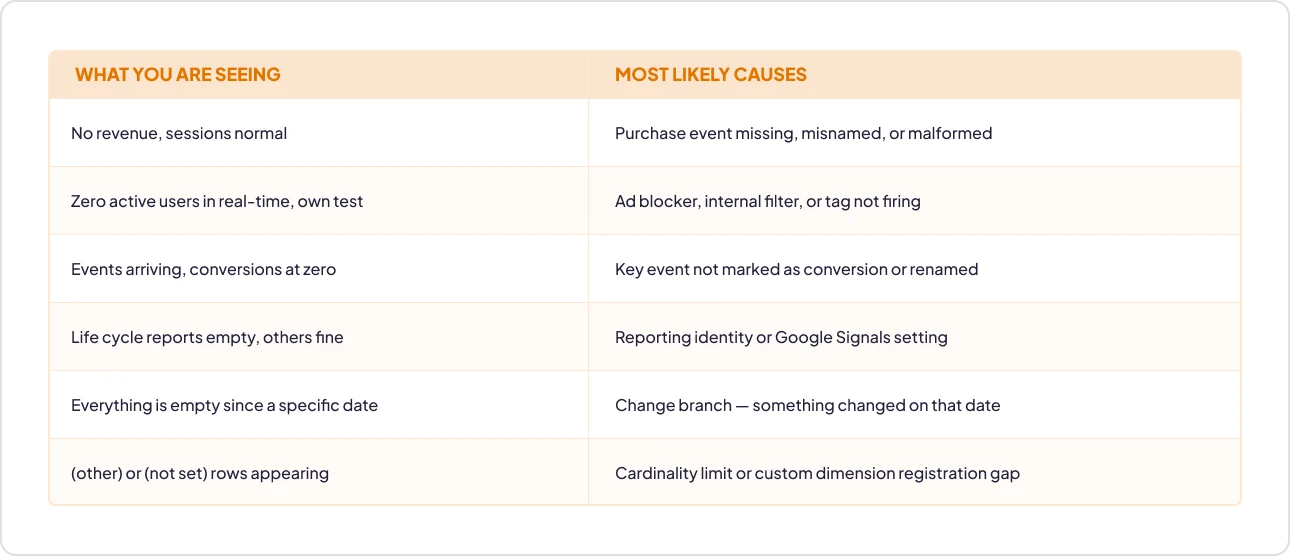
Organized by symptom rather than cause. Find your row, then jump to its branch.
GA4 revenue not showing
If sessions report and revenue does not, this is never an installation fault. The purchase event is not firing on the confirmation page, is firing under a name GA4 does not read as ecommerce, or arrives without a value parameter. GA4 revenue is not showing traces in the payload, not the tag.
GA4 not showing active users
An empty Realtime report during your own visit means the tag is not firing for you, narrower than empty historical reports. Check your ad blocker and internal filter first. GA4 not showing active users while history looks healthy is a self-test problem.
GA4 conversions not showing
Events are arriving; they are simply not marked as key events. Or the event was renamed, and the definition still points at the old name. GA4 conversions not showing is a configuration gap, and our guide to key events and goal setup covers it. If the events never fire, see GA4 event tracking errors.
GA4 life cycle reports not showing
These four reports depend on how the property resolves user identity. GA4 life cycle reports not showing points to a reporting identity or Google Signals setting, not a collection failure, but your GA4 data retention and thresholding settings cover both.
If GA4 Never Showed Data: 5 Installation-Level Causes
Ordered by how often each turns out to be the real cause in GAfix audits, not by how easy it is to explain. Most lists get that backwards.
[SME INSIGHT SLOT 1: frequency ranking] Across n audited properties, cause 1 accounted for X% of GA4 not showing data cases, cause 2 for Y%, and causes 1–3 together resolved Z%. Content lead: pull from the audit backend. Do not estimate.
Diagnosing a property you did not build starts with a property setup audit, not with assuming the last team got the basics right.
1. The measurement ID does not match the property you are looking at.
The most common cause of GA4 not showing data, and the one people suspect last. The Universal Analytics migration left most organizations with several GA4 properties: one Google created, one an agency made, and one for testing. The tag fires perfectly, and the data lands in a property nobody opens.
Compare the G-ID in your page source against the stream inside the property you actually report from, not the one you assume it is. If they differ, your data exists; it is elsewhere. Recovery means choosing which property becomes your system of record, a bigger conversation than swapping an ID.
2. The tag is installed, but not on every template.
A tag firing on your homepage proves nothing about your checkout. Sites are built from templates, and a snippet in a global header misses anything rendered outside it: a hosted payment page, a subdomain on another stack, or a route added after the tag went in.
Tag coverage is verifiable by hand up to roughly ten templates. Beyond that, manual page-by-page checking stops being reliable, because you are no longer testing coverage; you are testing your memory of which templates exist. Partial coverage is the quietest form of GA4, not showing data: reports look populated, so nobody checks the pages missing from them.
3. The GTM container was never published.
Preview mode works. Production does not. Someone built the tag, tested it in Preview, watched the event fire, and closed the tab without hitting Submit. It is a deceptively common reason for Google Analytics 4 not tracking, and it survives because the person who built it has already seen it work.
Check whether the live version in the container's Versions tab contains your GA4 tag. If it needs rebuilding rather than republishing, our Google Tag Manager container setup guide walks through it, and GTM implementation is there if you would rather hand it off.
4. The data stream was created but never configured.
The stream exists, so the property looks set up. But enhanced measurement was left off, the stream URL does not match the live domain, or cross-domain settings were never finished, so sessions break at every hop. If traffic moves between a main site and a booking or checkout domain, subdomain and cross-domain tracking is where GA4 not showing data usually starts. GA4 implementation is the cleaner path if the setup needs rebuilding.
5. An internal traffic filter was activated too early.
Activating an internal traffic filter before testing it is the most common self-inflicted cause of GA4 not showing data on an otherwise healthy site. A filter set to Active with a rule matching more than intended. A shared office range, a VPN, or an ISP block excludes real traffic silently and permanently.
The full seven-step configuration sequence and the six mistakes that create data gaps are covered in our guide to internal traffic filter configuration, along with excluding internal IPs.
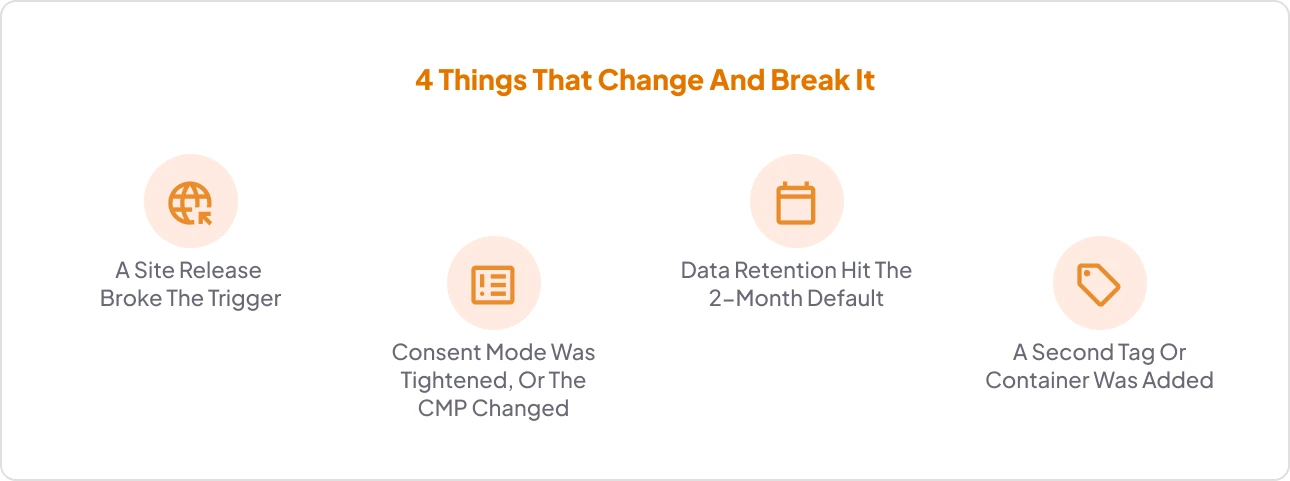
GA4 Stopped Tracking? 4 Things That Change and Break It
Nothing in GA4 stops tracking on its own. If a clean historical line flatlines on a specific date, that date identifies the change that caused it.
The honest limitation: GA4 gives you no change log for any of the four causes below. Nothing records that a trigger stopped matching, that a consent category was retightened, or that a second tag appeared. You reconstruct history from indirect evidence, and the evidence is the shape of the drop: total, partial, or historical-only.
[SME INSIGHT SLOT 3: retention] Of “N” properties audited, X% were still on the two-month default. Include the case where it cost someone a year-on-year comparison. Content lead: pull real figures.
1. A site release broke the trigger.
The most common reason GA4 stopped tracking. A developer renames a CSS class, changes a button ID, or moves a form into a new component, and the GTM trigger listening for the old selector stops matching. No errors. The tag never fires.
The signature is a partial drop: page views continue, and one or more events go to zero on the deploy date. Fixing it properly means rebuilding the trigger against something stable rather than the markup that just changed. Otherwise, the next release breaks it again, and GA4 not showing data becomes recurring.
2. Consent Mode was tightened, or the CMP changed.
Data does not stop here. It drops to consented traffic only, which looks like a partial outage and is often misread as one. A consent platform update, a new region added to the banner's scope, or a default switched from granted to denied can cut reported sessions sharply without one line of code changing.
If numbers fell by a consistent percentage rather than to zero, start here. Our guide to Consent Mode and cookieless tracking explains how modelling behaves under each configuration, and GA4 privacy and compliance checks verify that consent signals reach Google.
3. Data retention hit the 2-month default
This deserves far more attention than it gets, because no page ranking for GA4 not showing data mentions it.
GA4's event-level data retention defaults to two months. Google's documentation is explicit about what happens next: "When data reaches the end of the retention period, it is deleted automatically every month." No error appears, no warning is sent, and the data is not recoverable retroactively. Extending to 14 months affects future data only.
The nuance that catches people: this governs Explorations and funnel reports, not standard aggregated reports. An Exploration comparing this quarter against last year's returns shows nothing while reports look healthy, which means your GA4 is not showing data that demonstrably existed a month ago.
Fix: Check Admin → Data Retention today. It is the only cause here where waiting makes the damage permanent.
4. A second tag or container was added.
Someone installs GA4 directly in the site header while the same tag already fires through GTM, or a plugin adds its own snippet. The result is double pageviews and broken sessions and if the two tags disagree on cookies or domains, less data than before, not more. Check your page source: two G- IDs on one page, and you have found it.
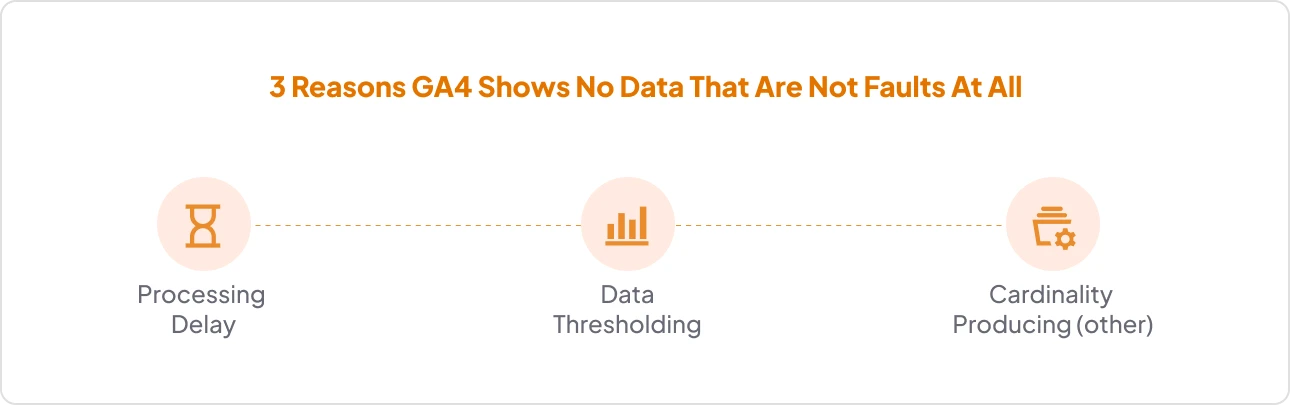
3 Reasons GA4 Shows No Data That Are Not Faults At All
Three of the twelve most common reasons GA4 shows no data are not faults at all. They are the platform working as designed, and two of the three are absent from every top-ranking article on this query. Analytics Mania, the strongest page on this SERP, covers thresholding well but addresses neither cardinality nor retention. This section exists to stop you from debugging what is not broken.
1. Processing delay
Real, but the least likely reason for GA4 not showing data once 48 hours have passed which is why leading with it, as most articles do, wastes your time. Google Analytics reports state that intraday processing for standard properties takes two to six hours, daily processing takes twelve, and that "data processing can take 24-48 hours" before figures settle.
The test takes thirty seconds: if Realtime is empty while you are on the site, processing delay is definitionally not the reason for Google Analytics not showing data, because Realtime does not queue.
2. Data thresholding
With Google Signals enabled and a report including demographic, interest, or search-query dimensions, Google withholds rows that could identify individuals. "The purpose is to prevent anyone viewing a report or exploration from inferring the identity or sensitive information of individual users."
This hits small properties hardest, because suppression is triggered by low user counts, so the sites least able to spare data lose it. The data quality indicator at the top of the report says when it has applied. Turning Google Signals off restores the rows at the cost of cross-device reporting: a trade, not a fix. Both live in your GA4 data retention and thresholding settings.
3. Cardinality producing (other)
Nobody on this SERP covers this, and it produces the most convincing false alarms in the GA4 no data category.
Google defines high-cardinality dimensions as "dimensions with more than 500 unique values in one day" and applies a hard limit of "50,000 values" per dimension before cardinality control kicks in. When a report exceeds its row limit, everything past it condenses into one row that is collected, reported, and aggregated into a bucket you cannot break apart.
Page paths with query strings, product IDs, and session IDs in a custom dimension can each cross 500 unique values a day on a modest site. GA4 not showing data at the row level, which looks like slow decay as grows, when it is a dimension design problem.
Why Checking These One at a Time Often Fails
Missing data causes compounding. Two or three stacked produce a symptom that reads as a single fault, which is why sequential checking so often ends in the wrong diagnosis.
Picture a property with a duplicate tag inflating sessions, thresholding suppressing demographic rows, and a two-month retention window truncating every Exploration. Check each in isolation, and each looks almost normal. Look at the reports, and you see one incoherent picture matching none of the three. You debug the symptom rather than the causes, and because you fixed something, the numbers shift, which reads as progress. Weeks later, GA4 not showing data is still the open ticket.
[SME INSIGHT SLOT 4: compounding] A real GAfix audit where two or three causes stacked and produced a symptom that looked like one fault. Content lead: supply the case.
[SME INSIGHT SLOT 2: the misdiagnosis] A case where the obvious cause was not the real one, ideally a team that fixed the wrong thing for weeks. Content lead: supply the case.
The limitation is structural, not a failure of effort. The GA4 interface can confirm a cause you already suspect. It cannot enumerate the causes you have not thought of. Every screen you open is a query you had to know to write, which is why GA4 tracking not working stays unexplained for weeks.
Two blind spots compound this. Attribution breaks in layers, and how GA4 attribution breaks in layers explains why a change in one surfaces somewhere else. A Content Security Policy that does not list Google's domains blocks the request before it leaves the browser. This is one reason first-party tracking and Google Tag Gateway matter.
Every check here is also point-in-time. None tells you whether the same thing breaks at the next release, which is what monitoring plans exist for.
CTA
The Order to Check These In When GA4 Still Isn't Working
Order by elimination power, not difficulty. The first three resolve most cases of GA4 not showing data.
- Realtime, incognito, ad blocker off. Data appearing puts you in the reporting branch; nothing appearing puts you in the installation branch.
- Measurement ID in page source against the stream in the property you report from. Thirty seconds to rule out the most misdiagnosed cause.
- Admin → Data Retention. If it says two months, change it now. Waiting only costs you more history.
- Admin → Data Filters. Any internal traffic filter set to Active is suspect.
- The flatline date against your release log and consent platform history.
- Page source for duplicate G- IDs.
Our GA4 audit checklist and the case for why a GA4 audit is essential cover the full sequence. Honest threshold: if these six do not resolve GA4 not working within an hour, you have compounding causes, and the manual route stops paying off.
Everything above assumes empty reports. If the data is there but disagrees with another tool, GA4 counts 500 conversions, and Google Ads counts 620 which is a mismatch, not missing data
Know the cause of GA4 not showing data you have? One defined tracking issue is a flat $299 Quick Fix, verified by an engineer. No call, no retainer.
Not sure it is only one thing? The free GA4 audit will tell you before you spend anything.

Frequently Asked Questions
Why is GA4 not showing any data?

Establish whether GA4 never showed data or stopped showing it. Never-tracked points to installation causes: wrong measurement ID, incomplete tag coverage, an unpublished container, and an over-broad internal filter. Stopped tracking points to change causes.
How long does GA4 take to show data?
Realtime updates within minutes; standard reports take 24 to 48 hours to settle. If Realtime is empty while you browse your own site, processing delay is not why GA4 is not showing data, and waiting will not help.
Why did GA4 suddenly stop tracking?
If GA4 suddenly stopped tracking, something likely changed. Start with the date the data stopped, then check what changed around that time: a website update, consent settings, data retention, or a new tracking tag.
Confident Decisions Start with Accurate Tracking
Ensure your GA4 and GTM are correctly configured, reliable, and ready for scale.
.webp)

Subscribe To Our Newsletter


